
Find received documents
meo files every received document itself. You find it in two places: in the request, and in the client’s folder under Documents. Nothing needs filing by hand.
In the request
Section titled “In the request”-
Click Requests in the left menu, then the request.
-
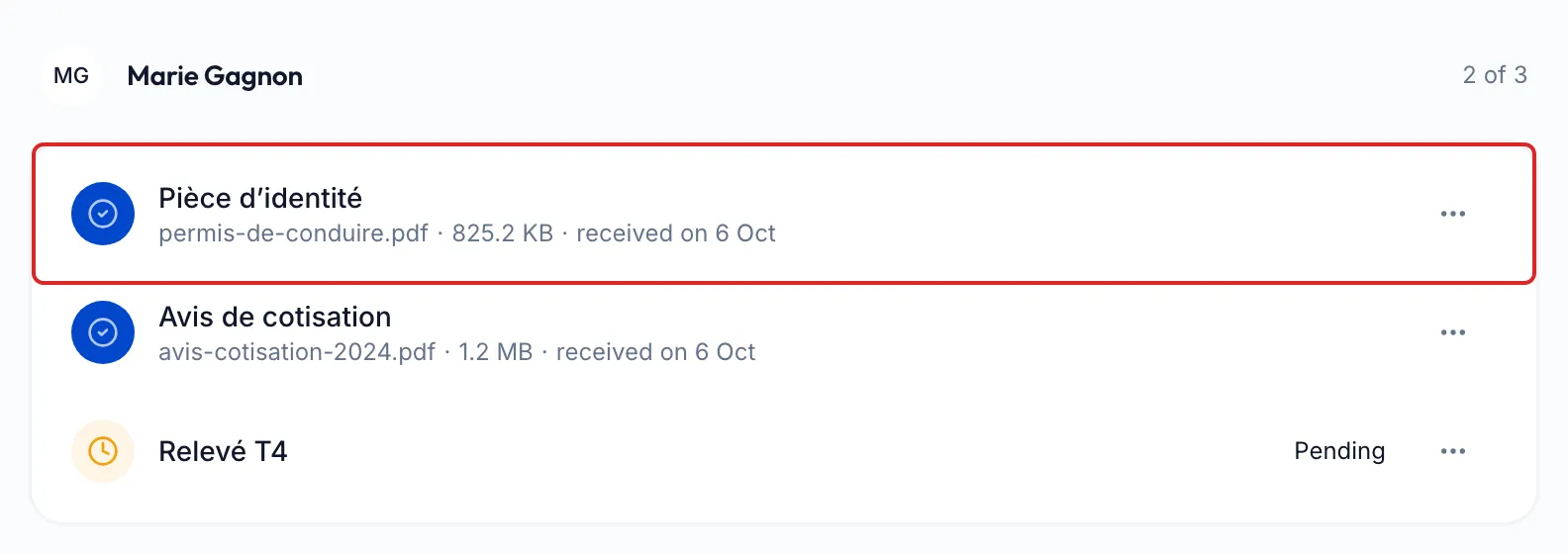
Each person’s card lists the request’s items. A received document shows “received on” and the date.
-
Click the row to preview the document. The row’s ⋯ menu offers Download.
The request also shows what is still missing and the history of what came in, see View a request’s history.
In the client’s folder
Section titled “In the client’s folder”-
Click Contacts in the left menu, open the client’s contact page, then the Documents tab.
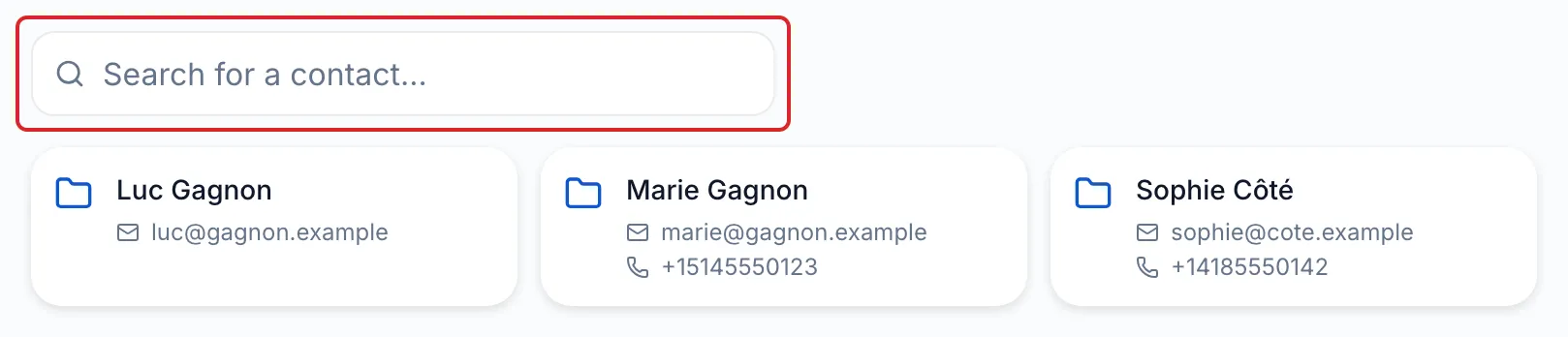
Another way: in Documents, open the Clients folder, look for the client with Search for a contact… and click their card. meo opens the Documents tab of their contact page.
-
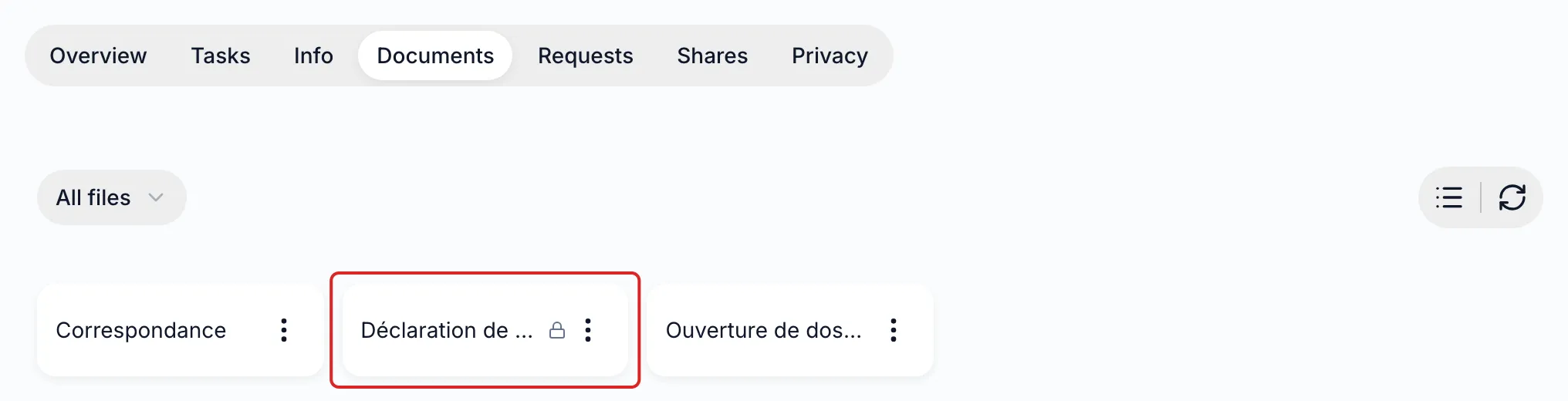
Open the folder named after the request. meo created it with the first documents received; while the request is in progress, a padlock follows its name. In the grid, a long name can be cut off: the List view icon, on the right, gives the names more room.
With search
Section titled “With search”Click Search… at the top of the page, or press ⌘ K (Ctrl K on Windows), then type the name of a document, a contact or a request.
Result
Section titled “Result”You open the received document, from the request or from the client’s folder.
Good to know
Section titled “Good to know”- If the request has several people, all the documents are filed in the folder of one of them, see In which person’s file are a request’s documents filed?
- While the request is in progress, its folder is managed by meo. Once the request is completed or cancelled, you can move or rename it like your own folders.
- A document you move to another folder stays listed in the request. If it leaves the client’s folder, the row shows “moved on” and the date.
Frequently asked questions
Section titled “Frequently asked questions”- How are received documents organised?
- Do you keep access to the documents once the request is closed for your client?