
Have a document signed by several people
One signature document can be signed by several people, for example two spouses or a client and their business partner. Each person has their own fields on the PDF, gets their own link and signs at the same time as the others or in turn.
Before you start
Section titled “Before you start”Each person who signs needs their own email address. Two people on the same request cannot have the same email address.
Place each person’s fields
Section titled “Place each person’s fields”-
In a new request, add each person who signs in the Participants card, with their email address.
-
In the Request contents card, click Add an item, then the Signature document tile. Enter the Signature document name and add the PDF. Under People who sign, meo lists the people on the request.
-
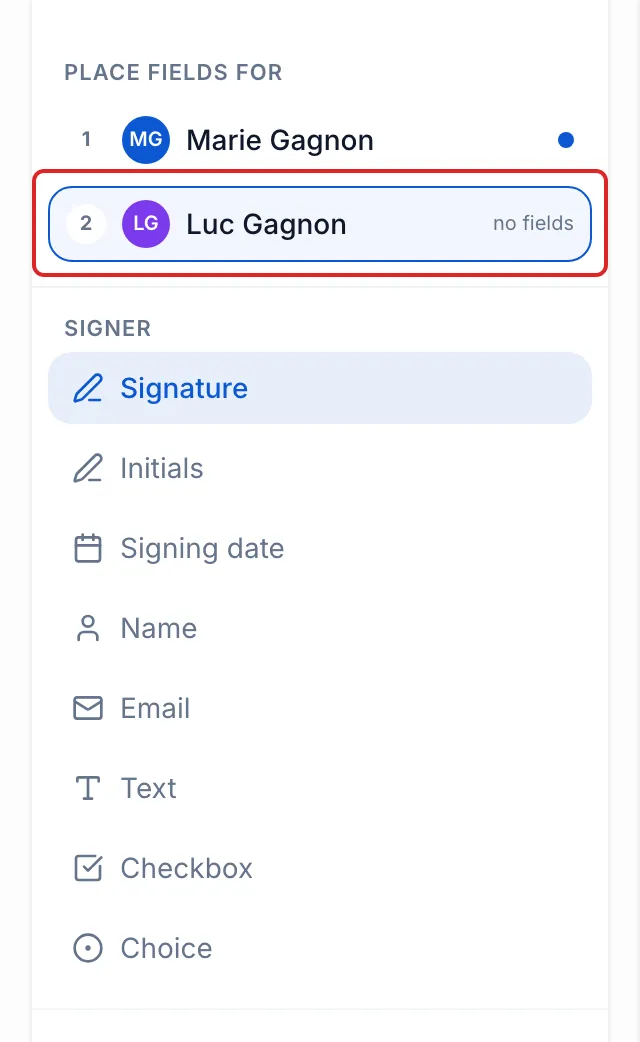
Click Place the fields. Under Place fields for, click the first person, then place their Signature and their other fields.
-
Click the next person and place their fields. Each person’s fields are shown in their colour. In the list, a dot in that colour appears next to a person who has fields; the others read “no fields”. A person with no field does not sign this document. Click Save.
-
Click Add to the request.
Choose the signing order
Section titled “Choose the signing order”-
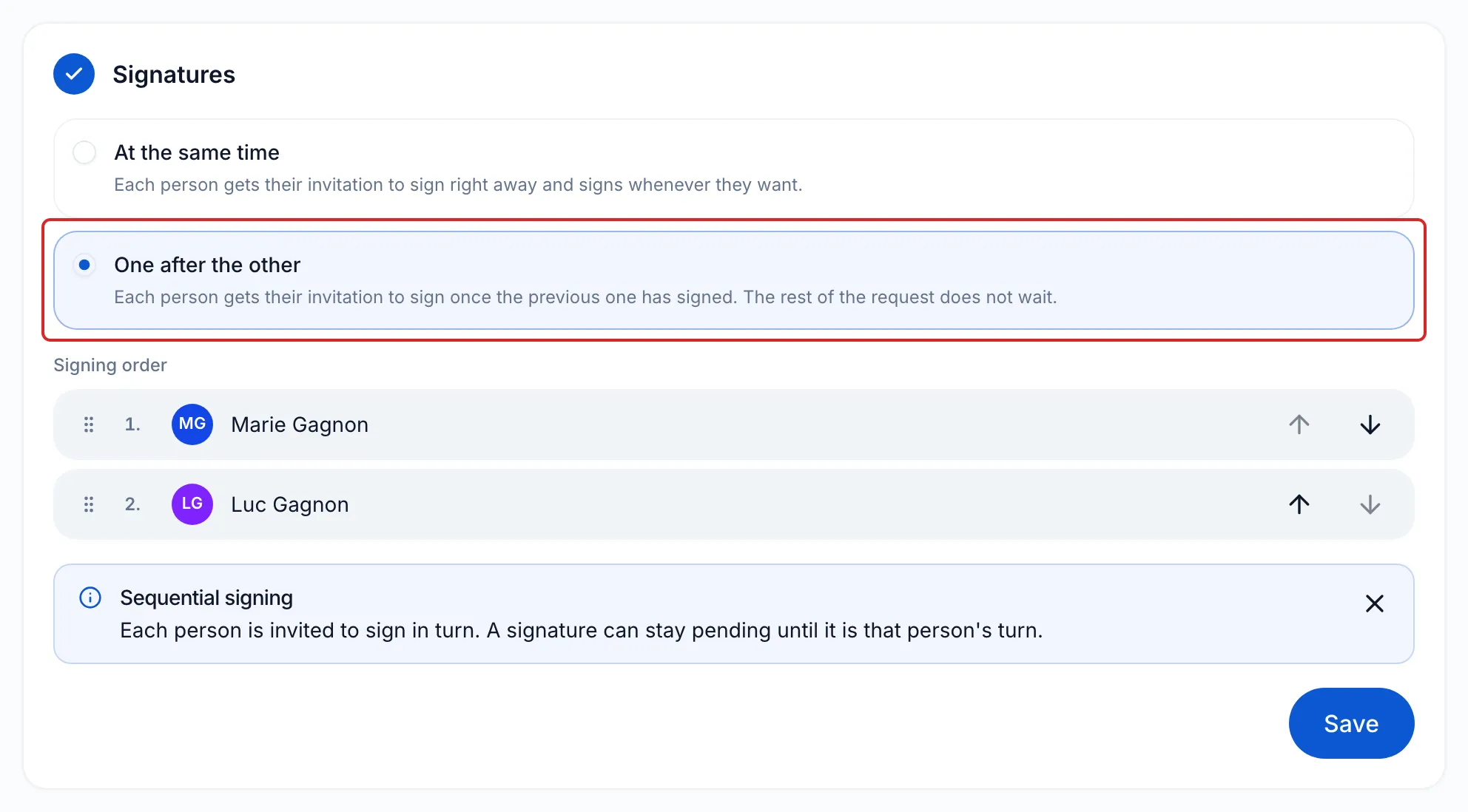
Under the contents, the Signatures card opens. Choose:
- At the same time, the default: each person gets their invitation to sign right away and signs whenever they want.
- One after the other: each person gets their invitation once the previous one has signed.
-
For One after the other, put the people in the order you want under Signing order, by dragging them or with the arrows.
-
Click Save to close the card, then Continue, and send the request.
Result
Section titled “Result”Each person receives their invitation to sign. With One after the other, the next person receives an “It is your turn to sign” email as soon as the previous one has signed. On the request page, the document’s row shows “waiting for” followed by the names of the people who have not signed yet.
Once everyone has signed, meo seals the document and sends a copy to each person.
Good to know
Section titled “Good to know”- With One after the other, only the signatures wait: each person can provide their other request items right away.
- The signed document is filed in the file of the person marked File in the Participants card.
- A signature document from the catalogue has roles: match each role to a person, then click Confirm mapping. See Create a reusable signature document.
- A person added after the document has no fields: expand the document’s row and click Edit fields to place theirs.
Frequently asked questions
Section titled “Frequently asked questions”- What should you do if a second signer cannot sign?
- Does each signer need their own email address?
- Do signers receive a copy of the signed document?