
Send a request to a client
A request gathers in a single link what you expect from a client: documents, answers to questions, a statement to accept or a document to sign. meo notifies your client by email or text message, then reminds them according to the reminders you choose.
Before you start
Section titled “Before you start”Have your client’s email address or phone number at hand. If New request is greyed out, you do not have permission to create requests in this space.
Compose the request
Section titled “Compose the request”-
Click New at the top of the left menu, then New request. The window opens on the Composition step.
Another way: on a contact’s page, click New request. The contact is then already added.
-
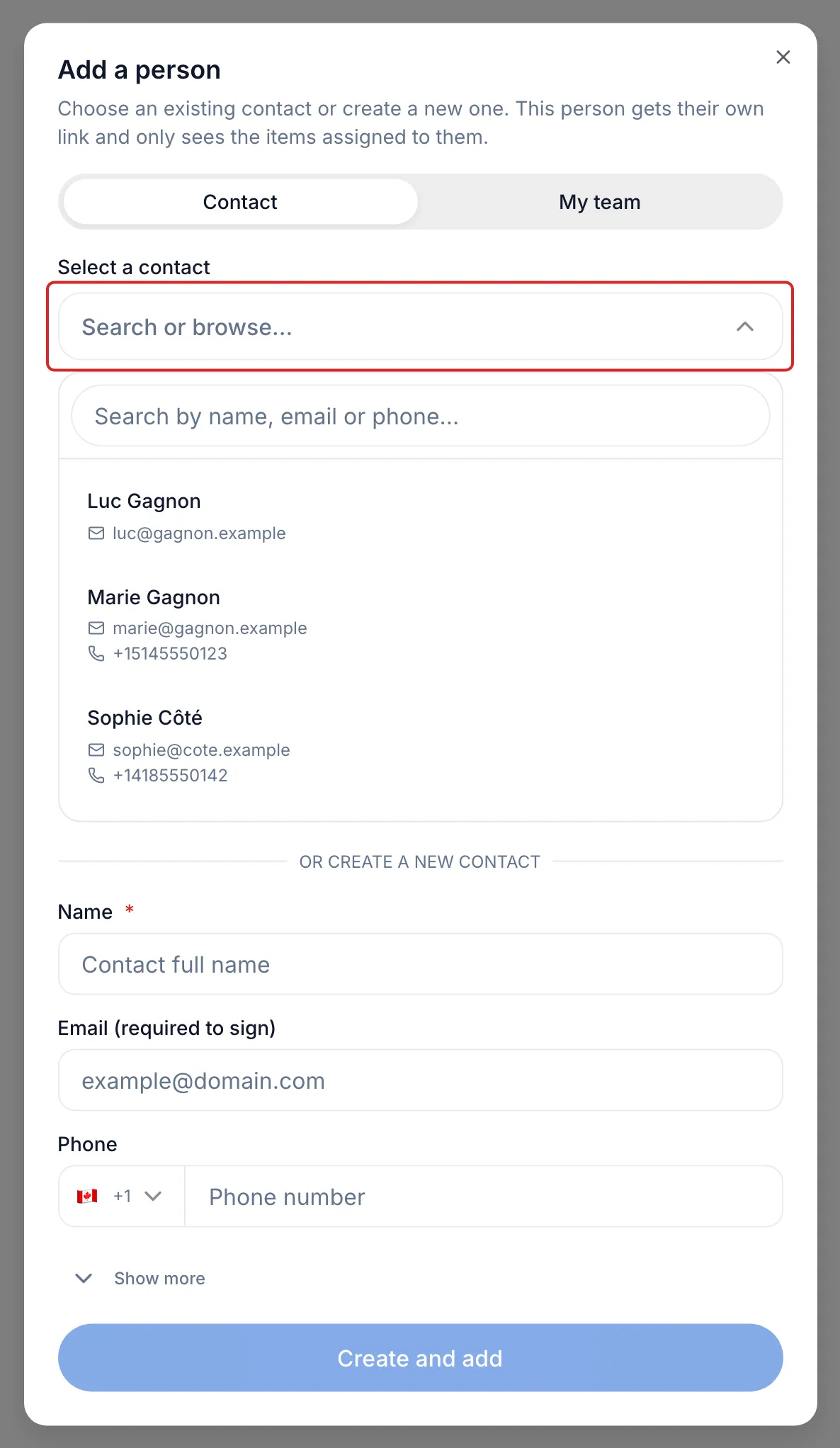
In the Participants card, click Add a person. Choose an existing contact or, under or create a new contact, enter their name and their email or phone number, then click Create and add.
Add other people if needed: each one gets their own link and only sees what is assigned to them.
With several people, the request and every document received are filed in the file of only one of them: the person marked File, at first the first person added. To choose someone else before sending, open their ⋮ menu and click File the request under this person (offered for a contact who has an email). After sending, this file no longer changes. Click Next.
-
In the Title and instructions card, choose a request template under Start from a request template if you like: it fills in the title, instructions and contents, which you can then change. Enter the Request title, add Request instructions if useful, then click Next.
-
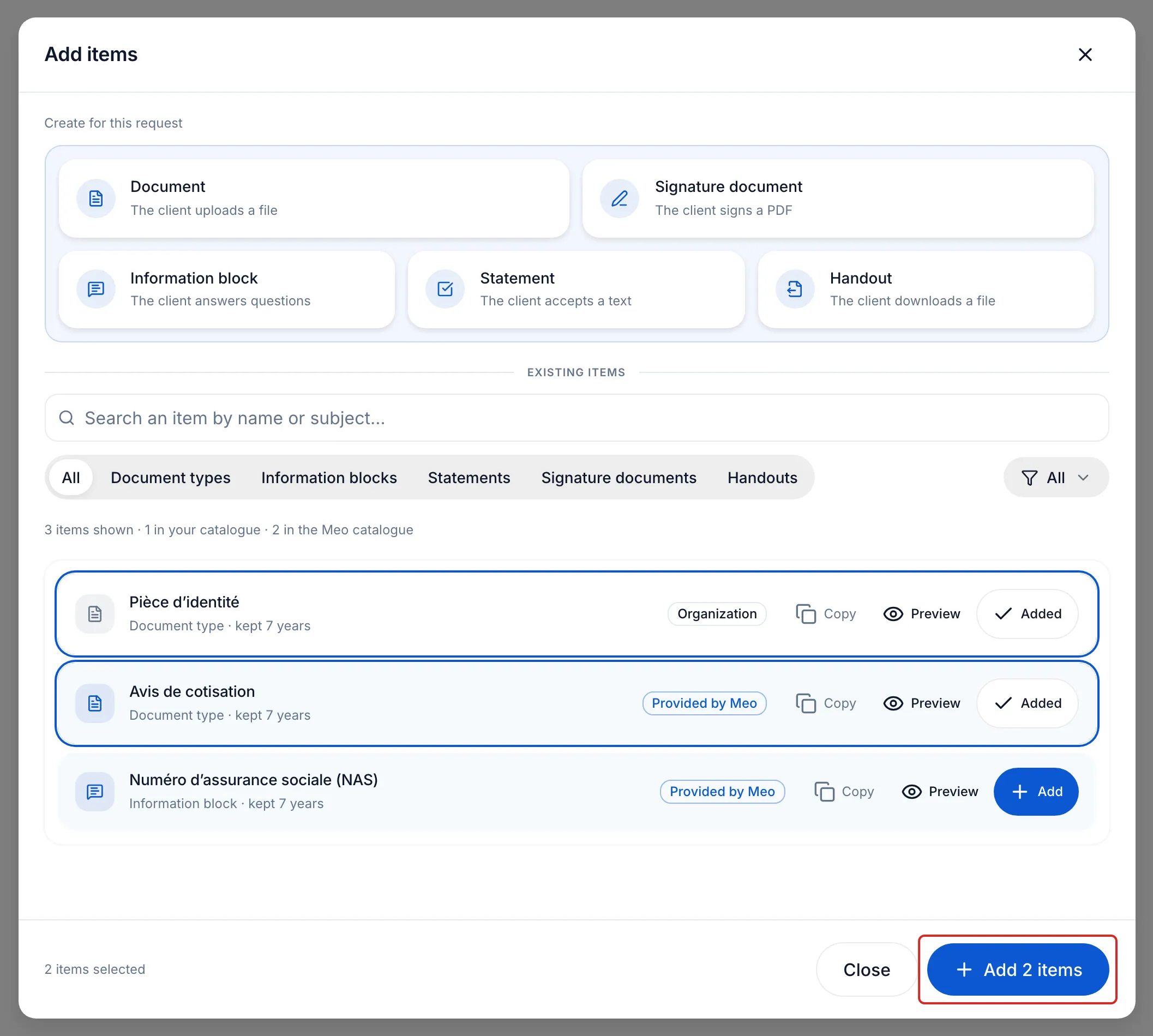
In the Request contents card, click Add an item. The window offers two paths.
- An item from your catalogue. Under Existing items, click Add next to each item already saved, such as a document type or an information block, then the button at the bottom, for example Add 2 items. The Meo catalogue also offers ready-to-use items.
- An item created for this request. Under Create for this request, click a tile: Document, Information block, Statement, Signature document or Handout. Prepare the item, then click Add to the request: it is used for this request only. To reuse it later, first turn on Save to the catalogue, if you are allowed to manage the catalogue; the button becomes Add and save.
An item changed in the request changes for this request only: the catalogue item stays as it is.
-
Drag the items into the order your client will see. If the request has several people, choose under Assigned to who provides each item, or All participants. Click Continue.
Send the request
Section titled “Send the request”-
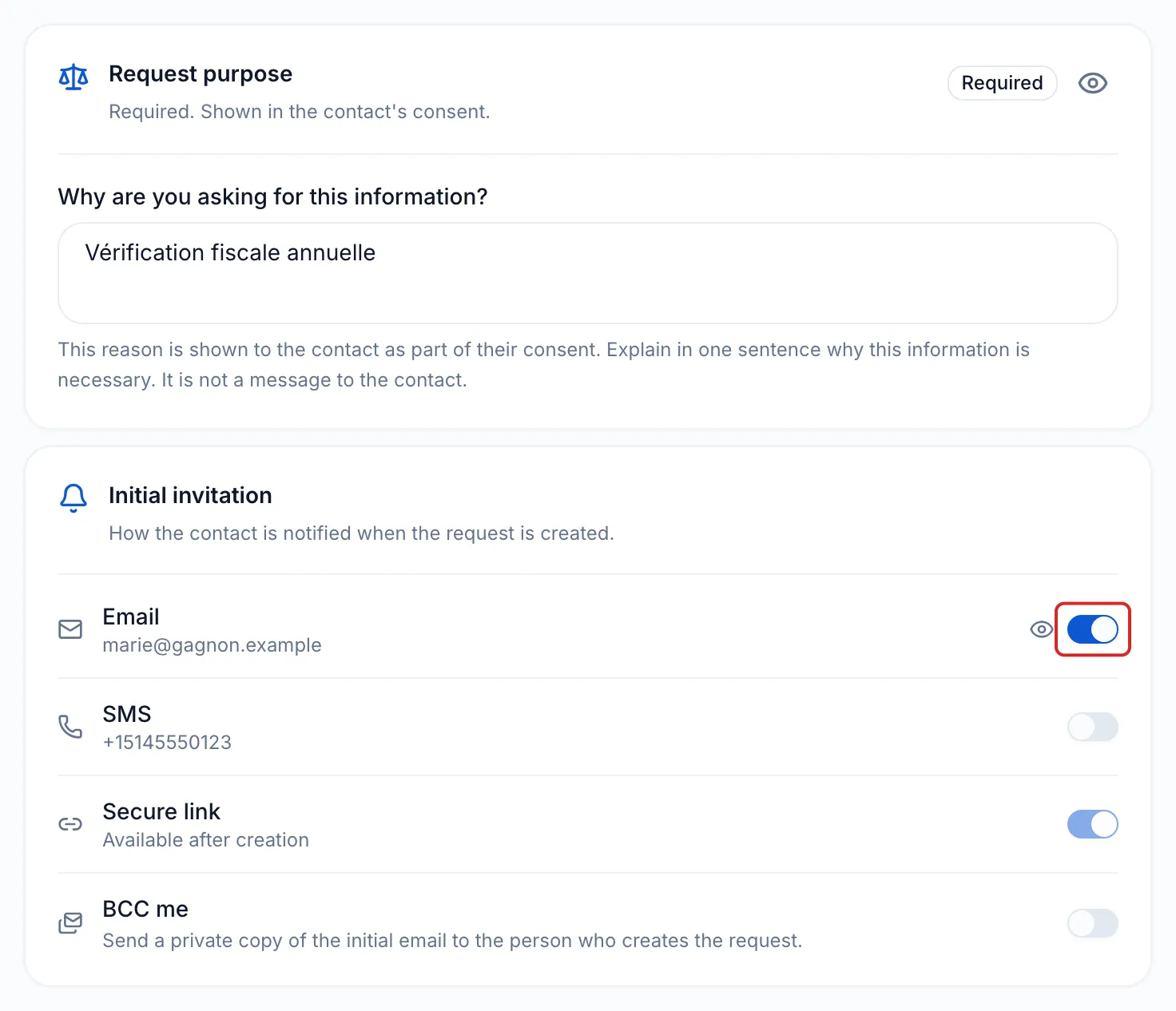
On the Delivery step, answer the Request purpose question in one sentence, for example “Annual tax verification”. The purpose is required: it appears in your client’s consent.
-
Under Initial invitation, leave Email or SMS on so that meo notifies your client.
-
Check the Due date (one week later by default), the End of collection and the Automatic reminders (every 3 days, at most 2 reminders by default). Click Continue.
-
On the Confirmation step, check what each person receives, then click Send.
Result
Section titled “Result”meo shows “Request sent” and the number of people notified. Click View request to follow what comes in.
Good to know
Section titled “Good to know”- The Client preview column on the right shows the portal and the email as each person will see them. On a narrower screen, open it with the Client preview button under the contents.
- meo saves the request as a draft while you compose it. You find it under Drafts the next time you click New request.
- With neither email nor SMS, the final button becomes Create: then copy each person’s link and pass it on yourself.
- When the request does not come from a request template, the final screen offers Save as a request template to reuse it with your next clients.
- Reminders, who receives the invitation, each person’s language and the sequence of notices are described in the Notifications, deadlines and reminders section.
Frequently asked questions
Section titled “Frequently asked questions”- What can you ask your clients for in a request?
- How do you make an item required?
- Can you add items to a request that has already been sent?
- In which person’s file are a request’s documents filed?