
Understand the left menu
The left menu is your starting point in meo: it leads to every page in the application and to your settings. It always shows one space at a time, the one whose name appears at the top of the menu: the contacts, requests and documents you see belong to that space.
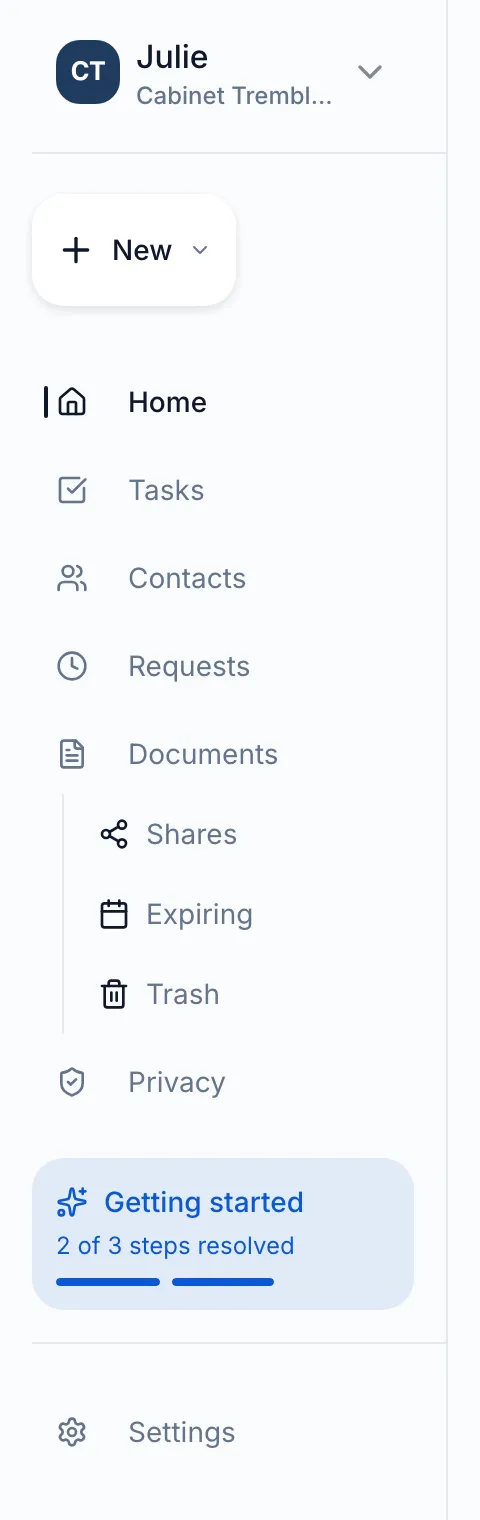
The menu, from top to bottom
Section titled “The menu, from top to bottom”-
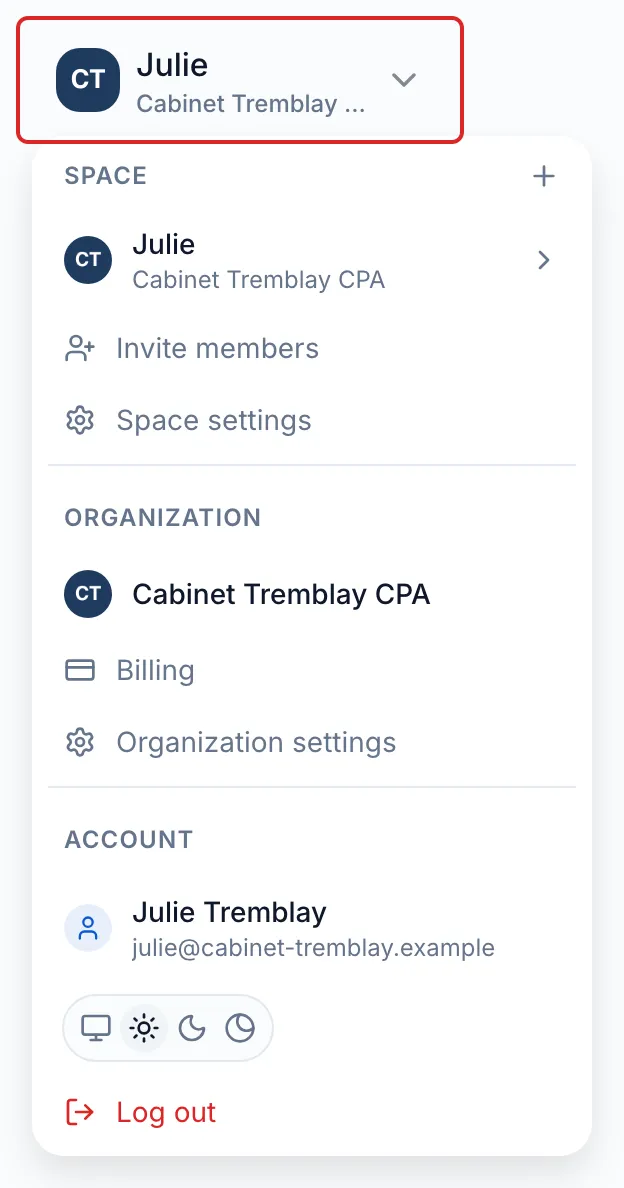
The space selector. Your space’s name and logo, at the top of the menu, open a panel with three sections. Space: switch spaces, add one with the + button, Invite members and Space settings. Organization: Billing and Organization settings. Account: your profile, the display theme and Log out. If you have only one space and no organisation access, the meo logo replaces this selector.
-
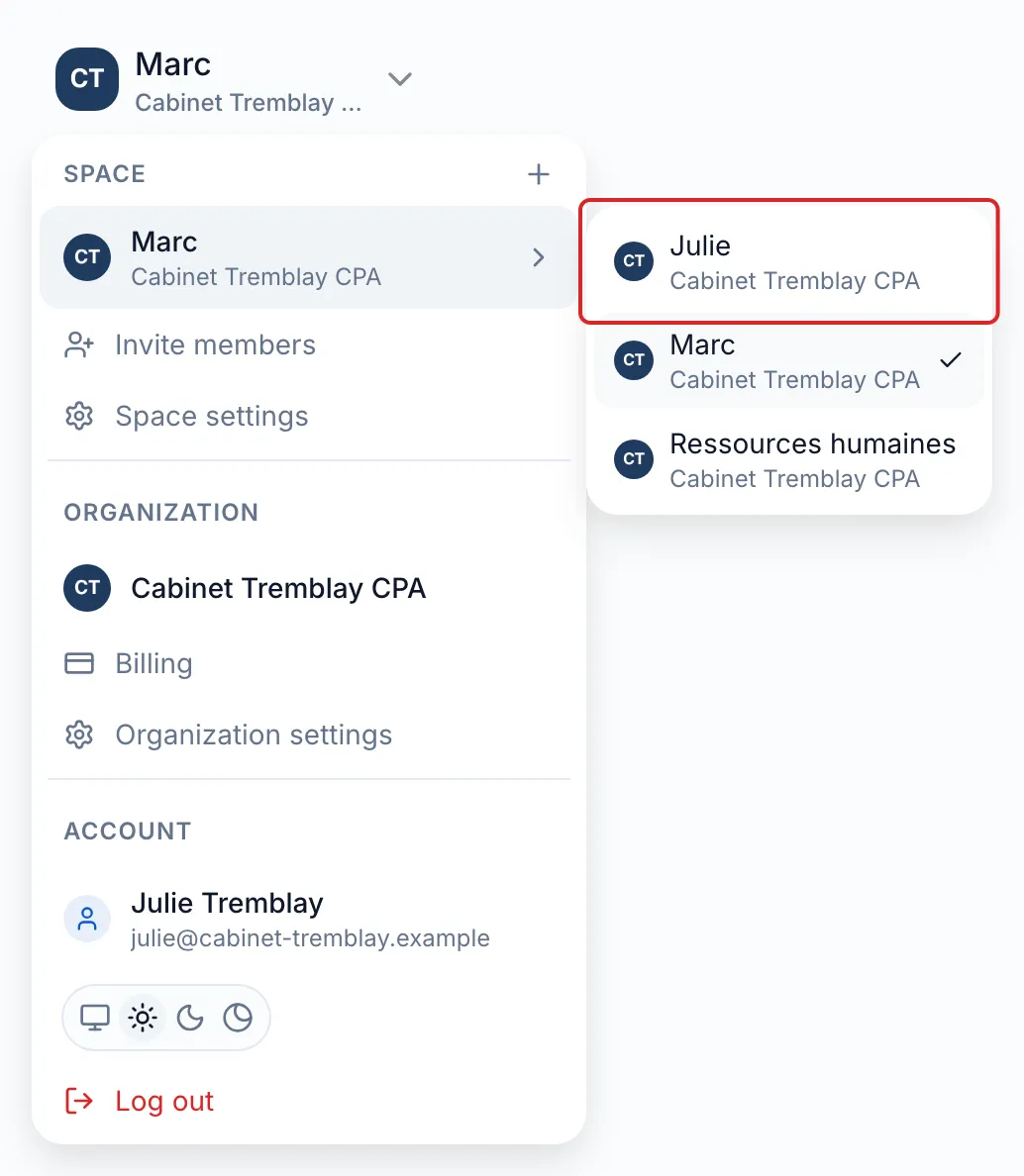
Switching spaces. In the selector’s Space section, point to or click the current space’s row, the one with an arrow: the list of your spaces opens to the right. Click another space. Its name appears at the top of the menu and every page shows its content. See Switch from one space to another.
-
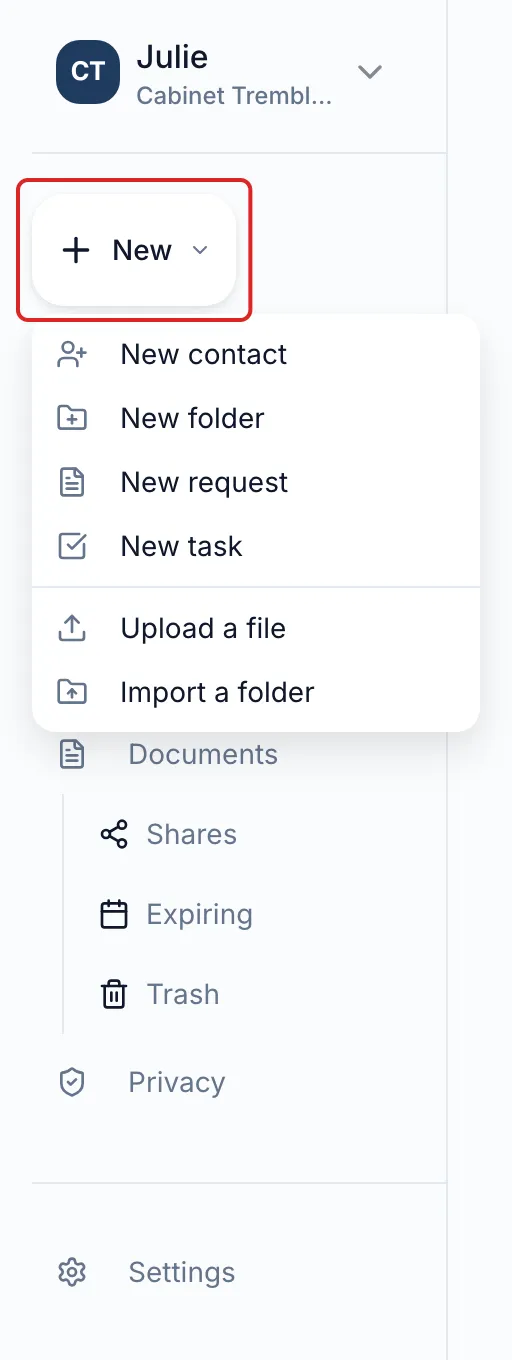
New. This button creates a New contact, a New folder, a New request or a New task. It also lets you Upload a file or Import a folder. A greyed-out option is not allowed by your role or where you are: hover over it to see why.
-
Home. Your current priorities, under Needs your attention, and your Recently viewed documents. Each row of Needs your attention opens the page where you act, for example portal submissions to review, requests awaiting follow-up, your tasks with a due date or documents expiring within 30 days. When there is nothing to do, the section reads All caught up. Until the space setup is finished, the Getting started guide card takes the place of the priorities.
-
Tasks. What you and your team need to do.
-
Contacts. Your clients, with their contact details, requests and documents.
-
Requests. The requests sent to your clients, in List view or Kanban view.
-
Documents. The space’s files and folders. Three pages belong to it. Shares: the folders you share with external collaborators. Deadlines: documents with an expiry date. Trash: deleted items, kept for 30 days before they are permanently deleted.
-
Privacy. Your organisation’s tools for protecting personal information.
-
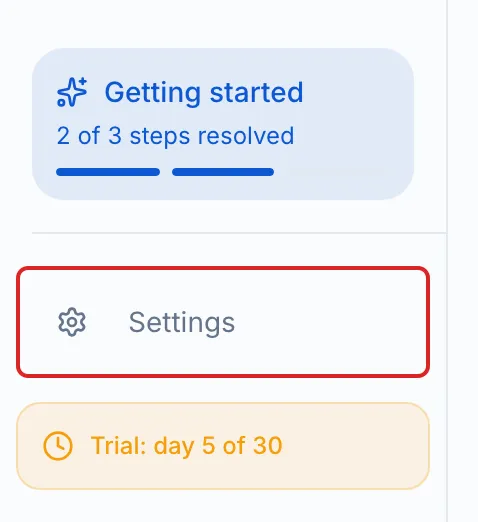
The bottom of the menu. Getting started opens your setup checklist until it is finished. Settings gathers the settings for the space, the organisation and your account, including the Activity log, Security (two-factor authentication, passkeys) and Notifications. During the trial, people who manage billing also see a badge that shows the trial day and leads to billing.
Result
Section titled “Result”You know where to find every page in meo and every setting for your space, your organisation and your account.
Frequently asked questions
Section titled “Frequently asked questions”- How do you switch to the light or dark theme?
- Where do you find the setup checklist shown on the home page?
- How do you reach meo support?