
Edit a catalogue item
Edit an item in the catalogue so the change applies to all its future uses: its name, instructions, formats, questions or retention. To adjust it in a single request template, do it in that request template, further down.
Before you start
Section titled “Before you start”- Only the owner and administrators edit the catalogue.
- An item is edited in the catalogue where it was created. In a space, an organisation item shows a lock: edit it from the organisation catalogue.
- Items Provided by Meo cannot be edited. In Manage elements, click Add an item, then Copy next to the item: meo opens a copy that you adjust, then save to your catalogue.
Edit the item in the catalogue
Section titled “Edit the item in the catalogue”-
Click Settings at the bottom of the left menu, then Catalogue in the Organization or Space section.
-
Click Manage elements. The Items page lists your items.
-
Find the item with the search or a filter, for example Document types.
-
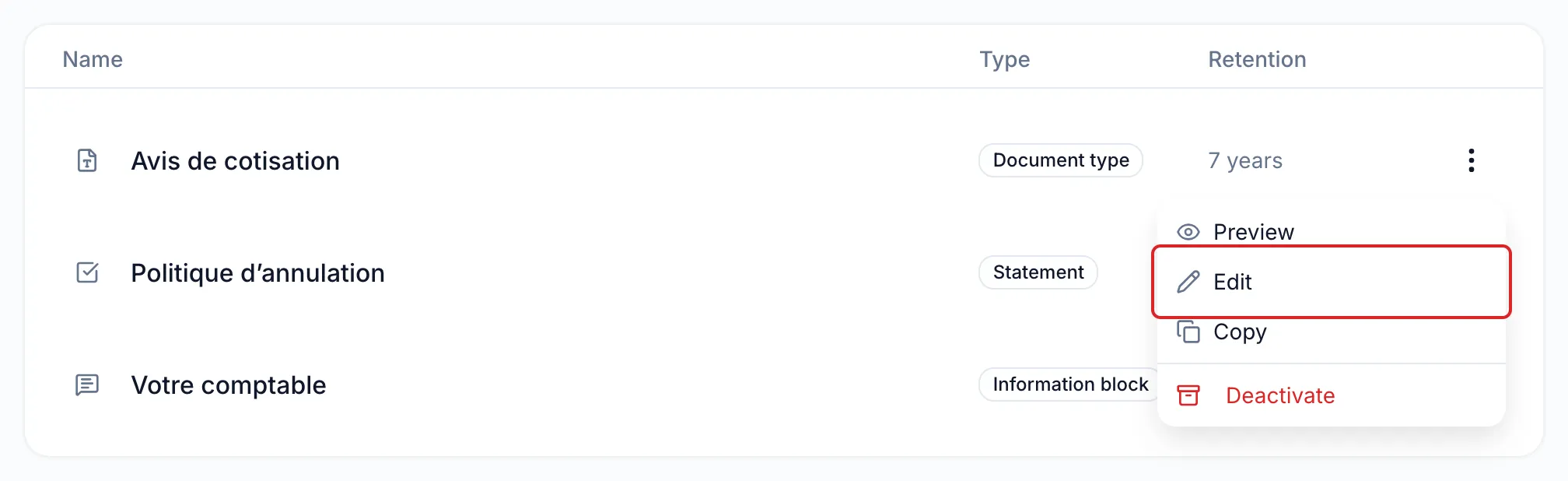
Open the ⋮ menu at the end of its row and click Edit.
-
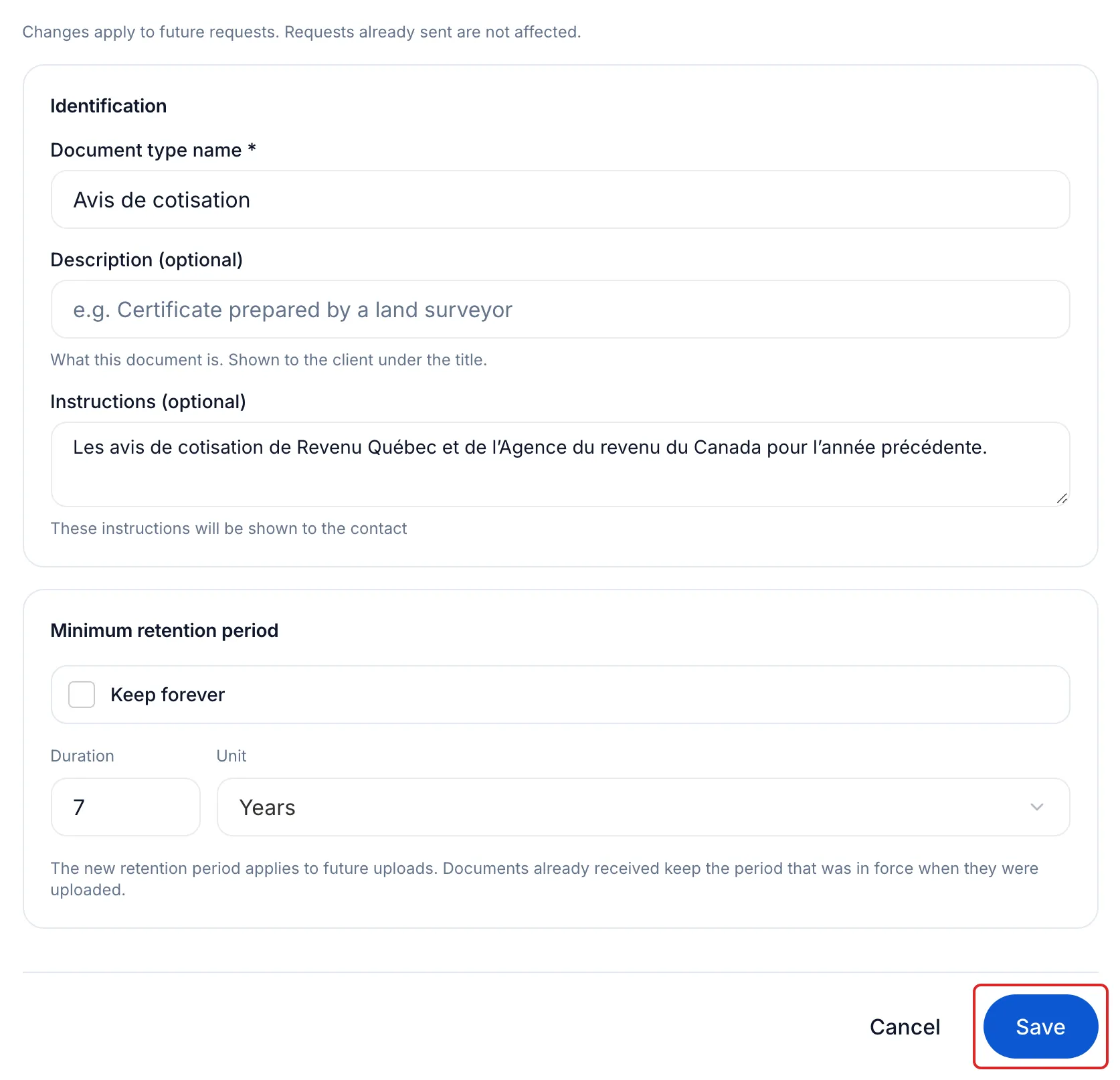
Make your changes, for example the Accepted file types or the Minimum retention period of a document type.
-
Click Save.
Result
Section titled “Result”The item is up to date in your catalogue. Every new time you add it to a request or a request template, that version is used.
Adjust an item in a single request template
Section titled “Adjust an item in a single request template”-
In the catalogue’s Request templates tab, click the request template.
-
On the Content step, open the item’s ⋯ menu and click Settings.
-
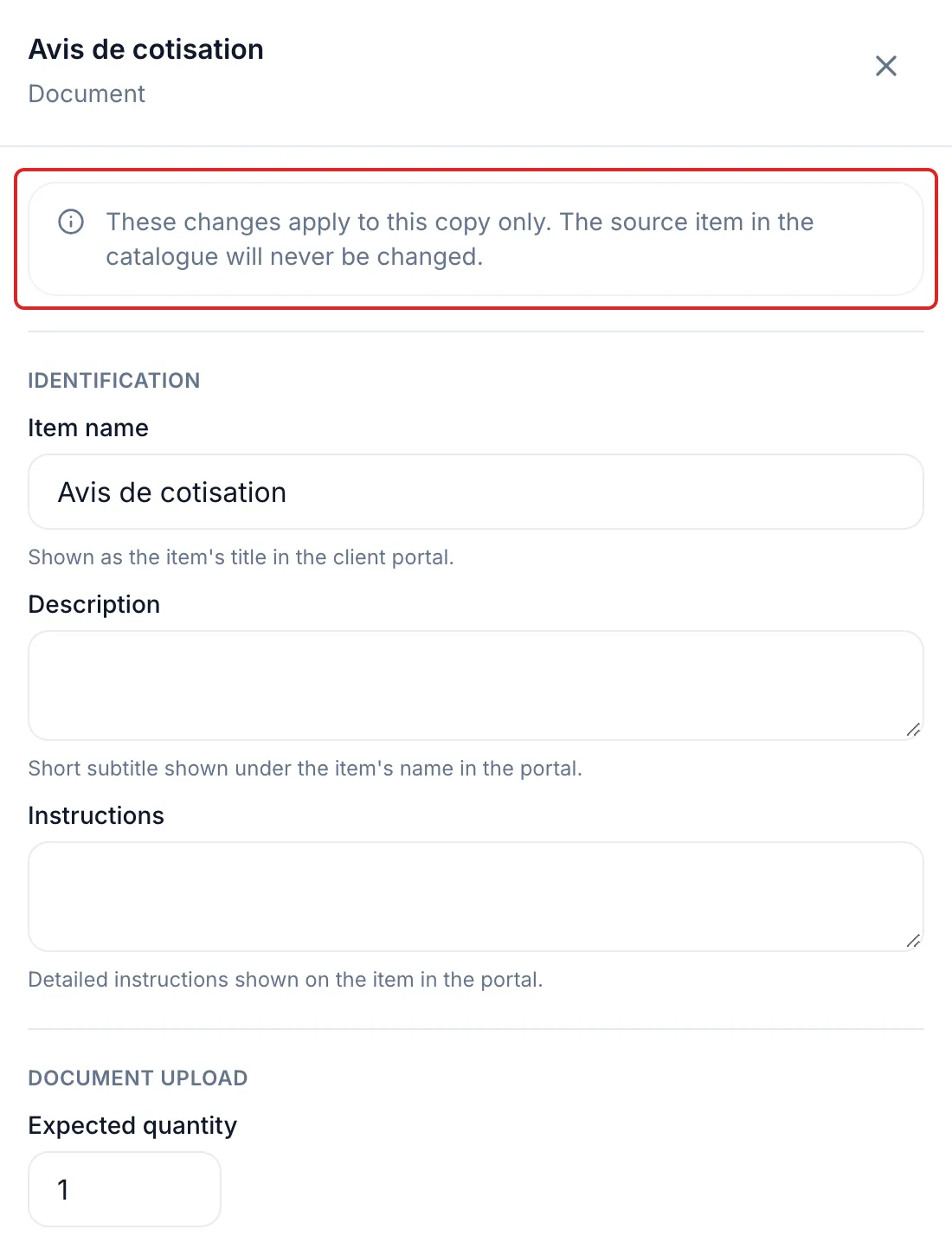
Change the name, instructions, retention or formats, then click Save. For an information block, click Edit the questions and the layout, then Apply to this copy.
-
Click Continue up to the Review step, then Save changes.
This change applies to that request template only. The catalogue item does not change.
Good to know
Section titled “Good to know”- Requests already sent do not change.
- Request templates that already contain the item keep their version. To give them the new one, remove the item from the request template and add it again with Add an item.
- A new retention period applies to future uploads. Documents already received keep the one in force when they were uploaded.
- The PDF of a signature document and the file of a handout cannot be replaced. To use another one, archive the item and create a new one.
Frequently asked questions
Section titled “Frequently asked questions”- How do you remove an item or request template you do not need?
- Can you change the contact detail fields asked of your client?
- Are document types specific to each client?