
Create a custom question for your client to fill in
In meo, a question for your client to fill in goes into an Information block: a catalogue item that groups one or more questions. Created once, it can be added to all your requests and request templates.
Before you start
Section titled “Before you start”Only the owner and administrators create items in the catalogue. For a question you need only once, you can also create it right in the request: see Good to know.
Create the information block
Section titled “Create the information block”-
Click Settings at the bottom of the left menu, then Catalogue in the Organization section (all your spaces) or the Space section (this space only).
-
Click Manage elements, then Add an item. The Catalogue window opens.
-
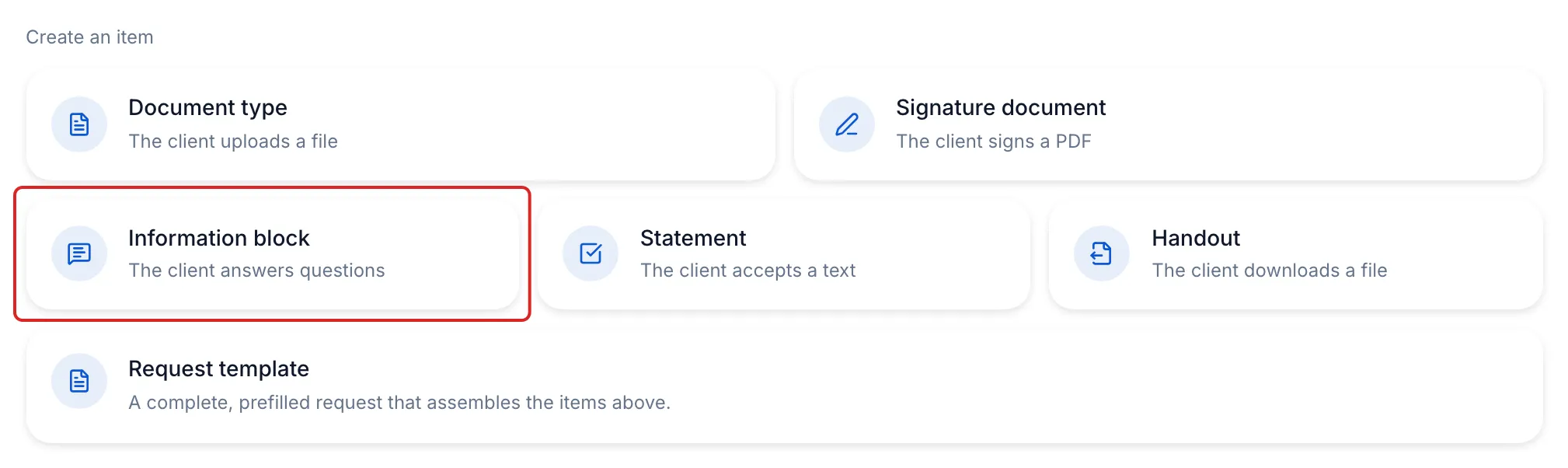
Under Create an item, click the Information block tile.
-
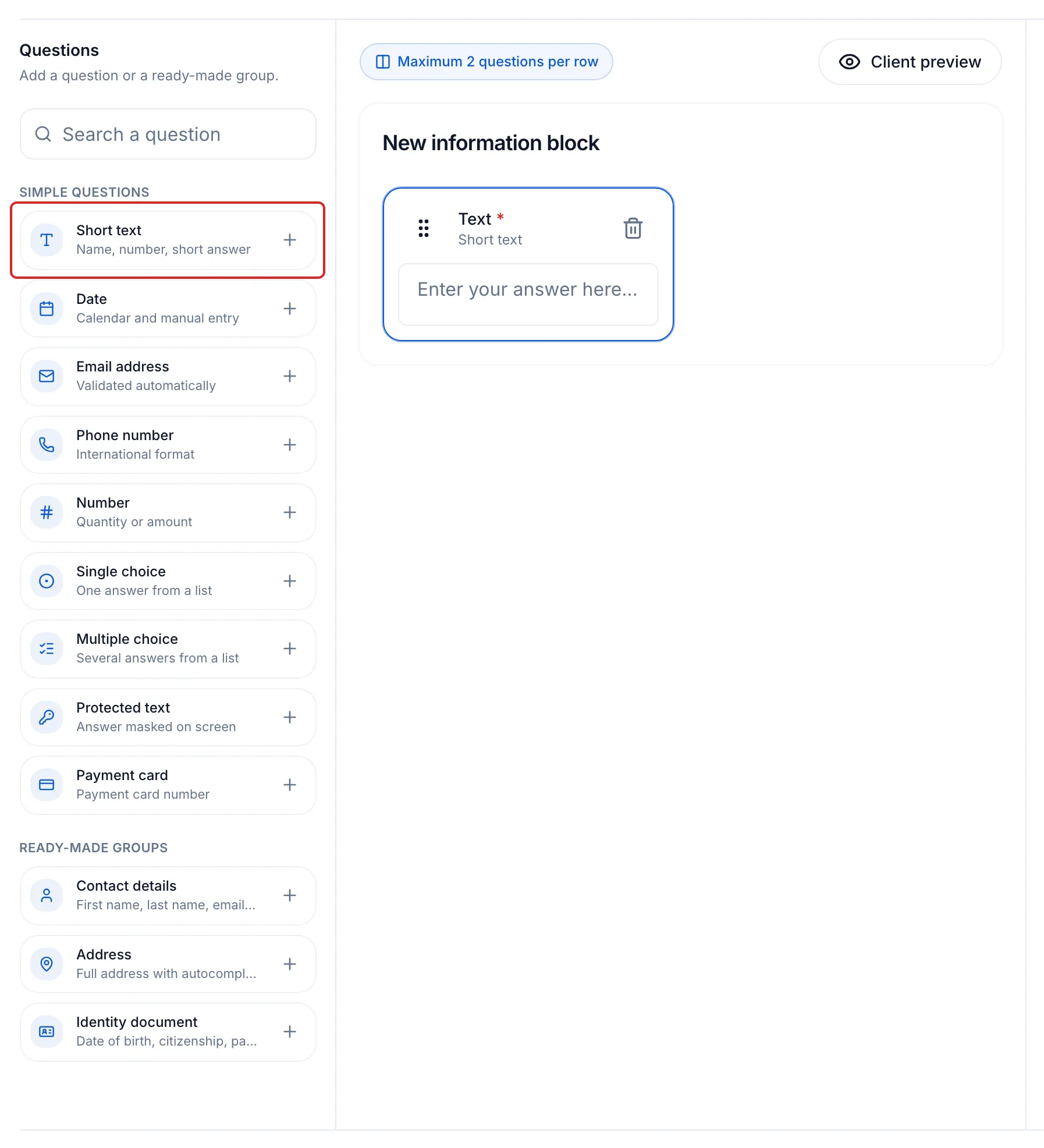
In the Questions column, under Simple questions, click the answer format you want, for example Short text for a name or Single choice for a list. The question is added to the block and its settings open.
-
In Question settings, replace the Question label, for example “Name of your accountant”. For a choice, enter the Options. Leave Required on if your client must answer before submitting.
-
Add more questions if needed, then drag them into the order you want.
-
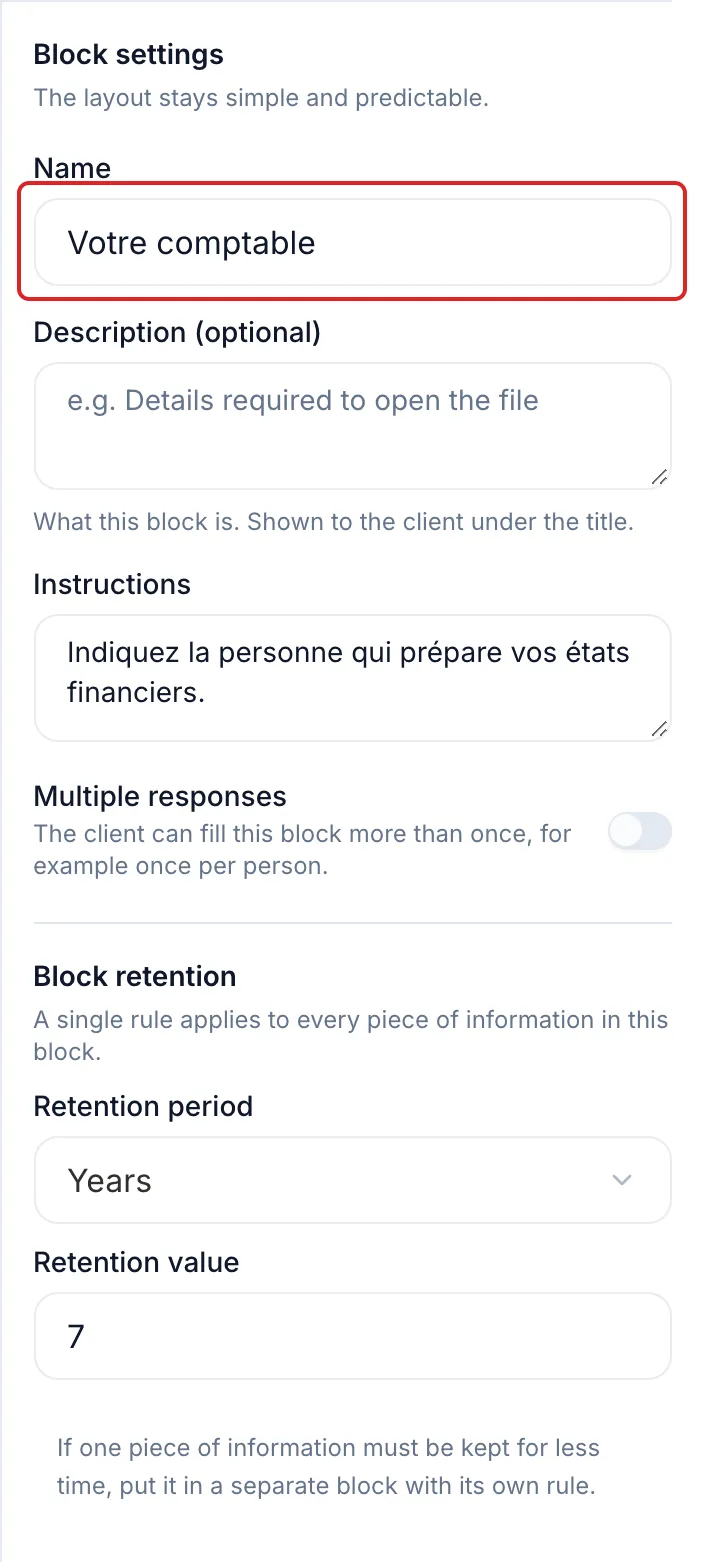
Click the block’s title at the top to open the Block settings. Enter its Name, add Instructions if needed, then choose the Block retention.
-
Click Save.
Result
Section titled “Result”meo shows “Item saved”. The block is in your catalogue: add it to a request or a request template with Add an item.
Good to know
Section titled “Good to know”- The formats on offer are Short text, Date, Email address, Phone number, Number, Single choice, Multiple choice, Protected text and Payment card. Under Ready-made groups, Contact details, Address and Identity document add several questions in one click.
- Multiple responses, in the block settings, lets your client fill in the block more than once, for example once per person.
- One retention rule applies to the whole block. To keep an answer for less time, put it in a separate block.
- Client preview shows the block as your client will see it.
- For a single request: in the Request contents card, click Add an item, then the Information block tile. Leave Save to the catalogue off to keep the question in this request only, or turn it on to reuse it.
Frequently asked questions
Section titled “Frequently asked questions”- What is the Additional person item for?
- Can you change the contact detail fields asked of your client?
- What is the difference between a document, an information item and a document to sign in the catalogue?