
Move your existing folders into meo
Drag your folders into meo: their subfolders and files are kept. For each folder, you choose the client it belongs to, and meo places it in that client’s folder.
Before you start
Section titled “Before you start”- Create your clients in meo first so that it recognises them: on the Contacts page, click Import and choose a .csv or .xlsx file, up to 5,000 contacts at a time. The guide Import your contacts from other software walks through each step.
- A batch holds at most 1,000 files, and each file can be up to 50 GB.
Import your folders
Section titled “Import your folders”-
Click Documents in the left menu and open the folder where folders that belong to no client should go. The Clients folder does not accept uploads.
-
In your computer’s file explorer, select your folders and drag them onto the page. For a single folder, you can also click New at the top of the left menu, then Import a folder.
The Import folders window opens on the Assign step, with one row per folder.
-
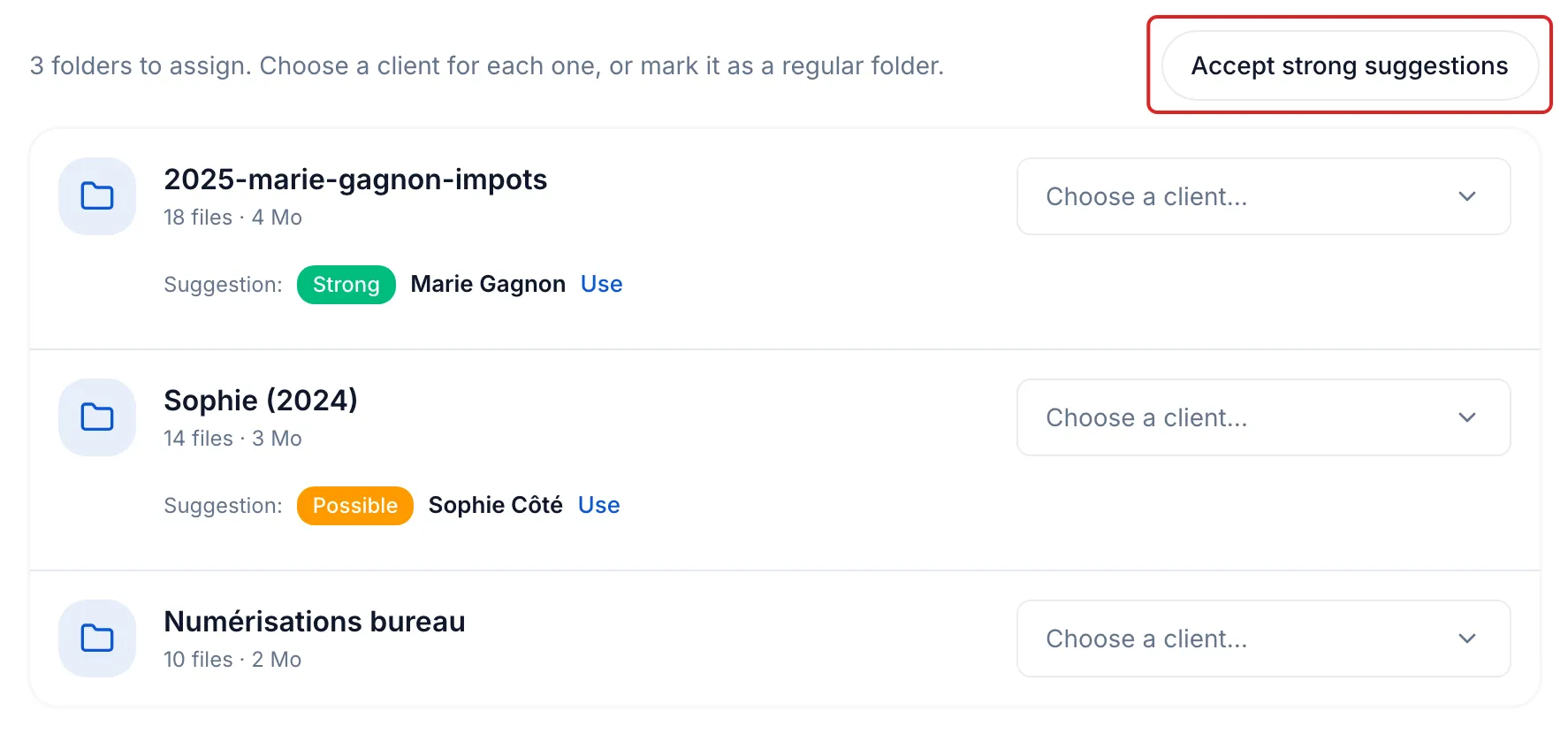
For each folder, open Choose a client… and choose the client. When the folder’s name looks like a contact’s name, meo shows a Suggestion: Strong when it holds the full name, like “2025-marie-gagnon-impots” for Marie Gagnon, or Possible when it holds part of it, like “Sophie (2024)” for Sophie Côté. Click Use, or Accept strong suggestions to accept every Strong suggestion at once.
-
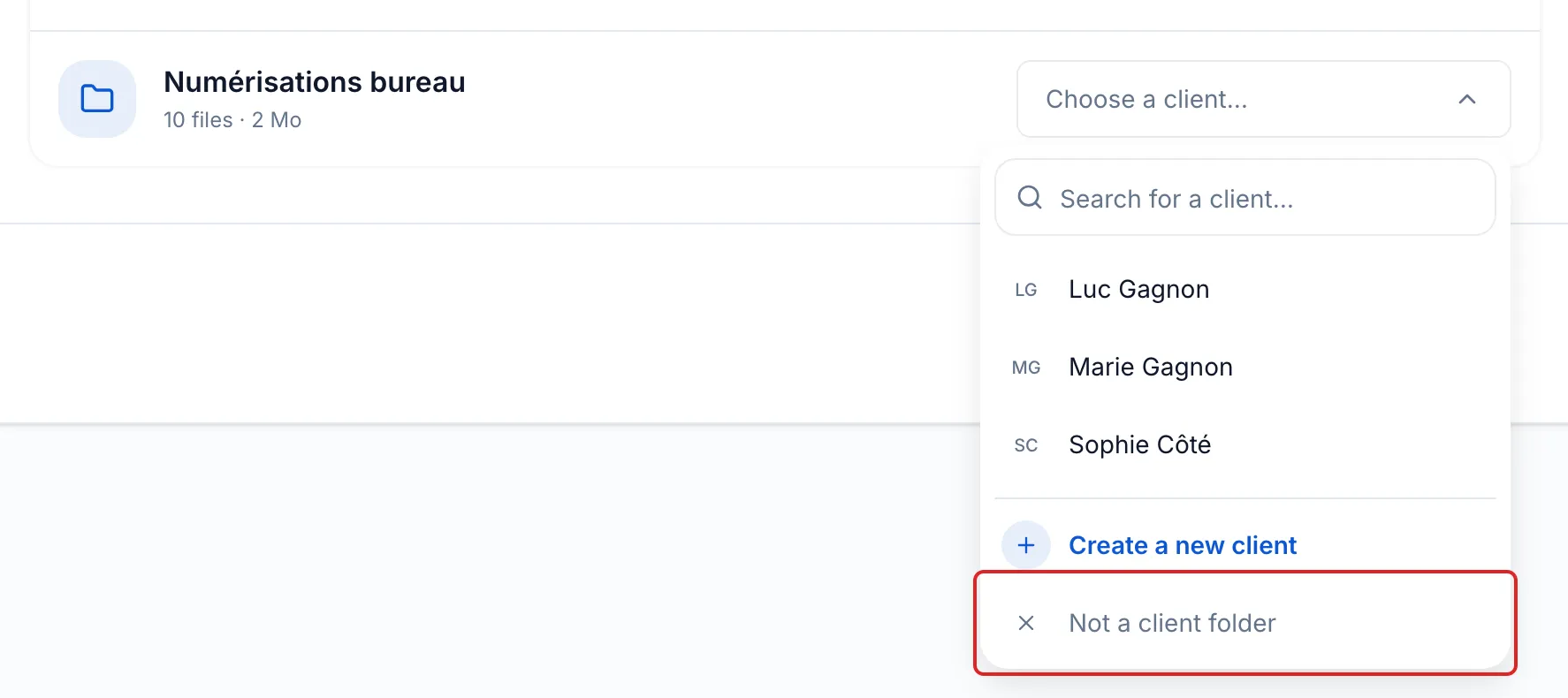
For a client who does not exist yet, choose Create a new client, then enter their name and an email or phone number. For a folder that belongs to no client, choose Not a client folder: it is uploaded to the open folder.
-
Click Continue. With no conflict, the import starts right away.
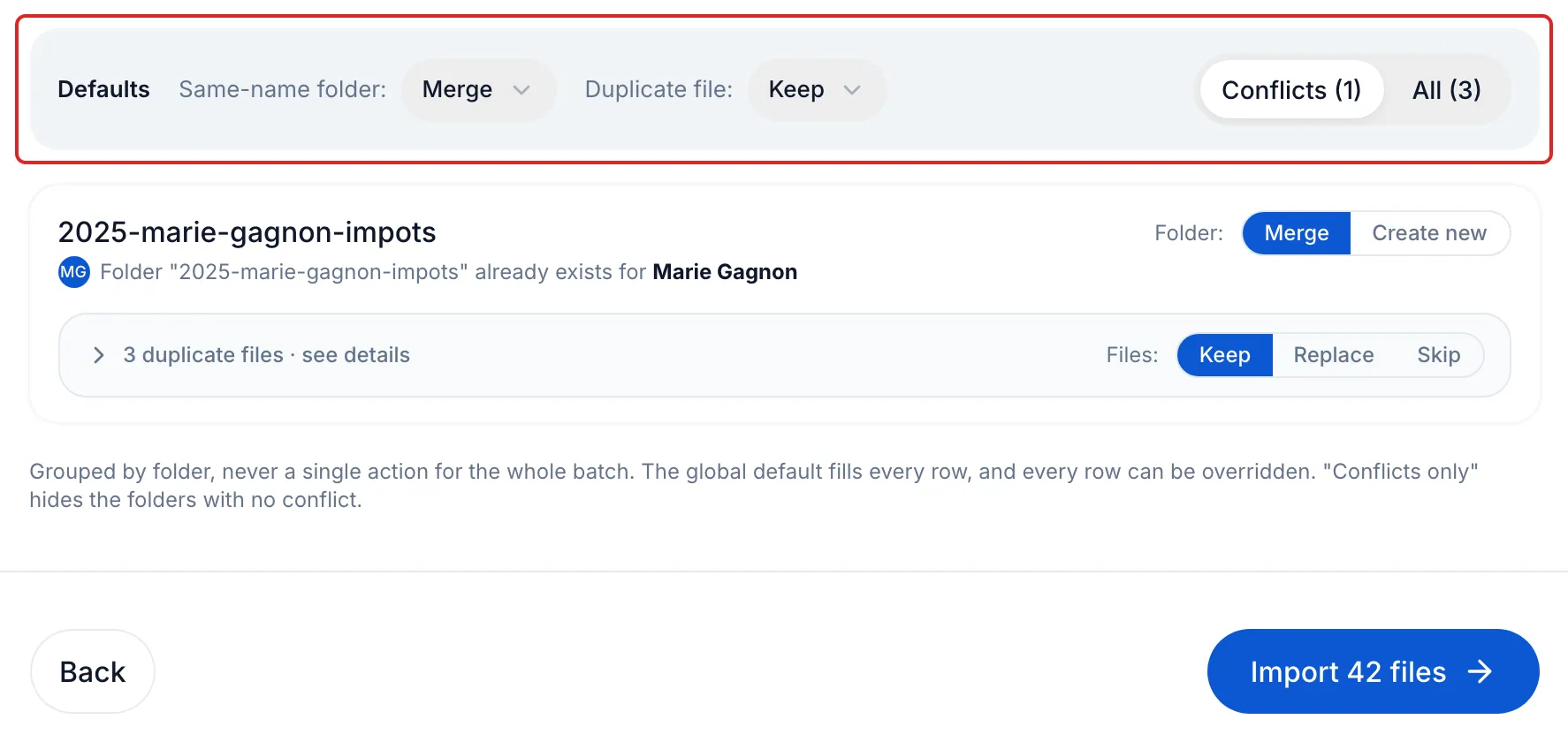
If a folder with the same name already exists, the Review step opens. Choose Merge or Create new for the folder, and Keep, Replace or Skip for duplicate files, then click Import, followed by the number of files.
-
During the import, you can click Close (continues in the background): the files keep uploading.
Result
Section titled “Result”meo shows “Import complete”. Each folder assigned to a client sits in that client’s folder, with its subfolders, and appears in the Documents tab of their contact page.
Good to know
Section titled “Good to know”- meo never applies a suggestion on its own: each folder waits for your choice.
- Beyond 1,000 files, meo opens “Too many files for a single batch”. Mark folders Defer, import the rest, then click Import the next batch.
- Dragged into the Documents tab of a contact page, your folders go straight into that contact’s folder, without the Assign step.
- Import a folder does not keep empty folders. Drag them onto the page instead.