
Create your meo account
Signing up starts a free 30-day trial, with no credit card required. It takes five steps. The bar at the top of the screen shows which step you are on.
-
Go to app.documeo.ca/signup. From the sign-in page, you can also click Create an account.
-
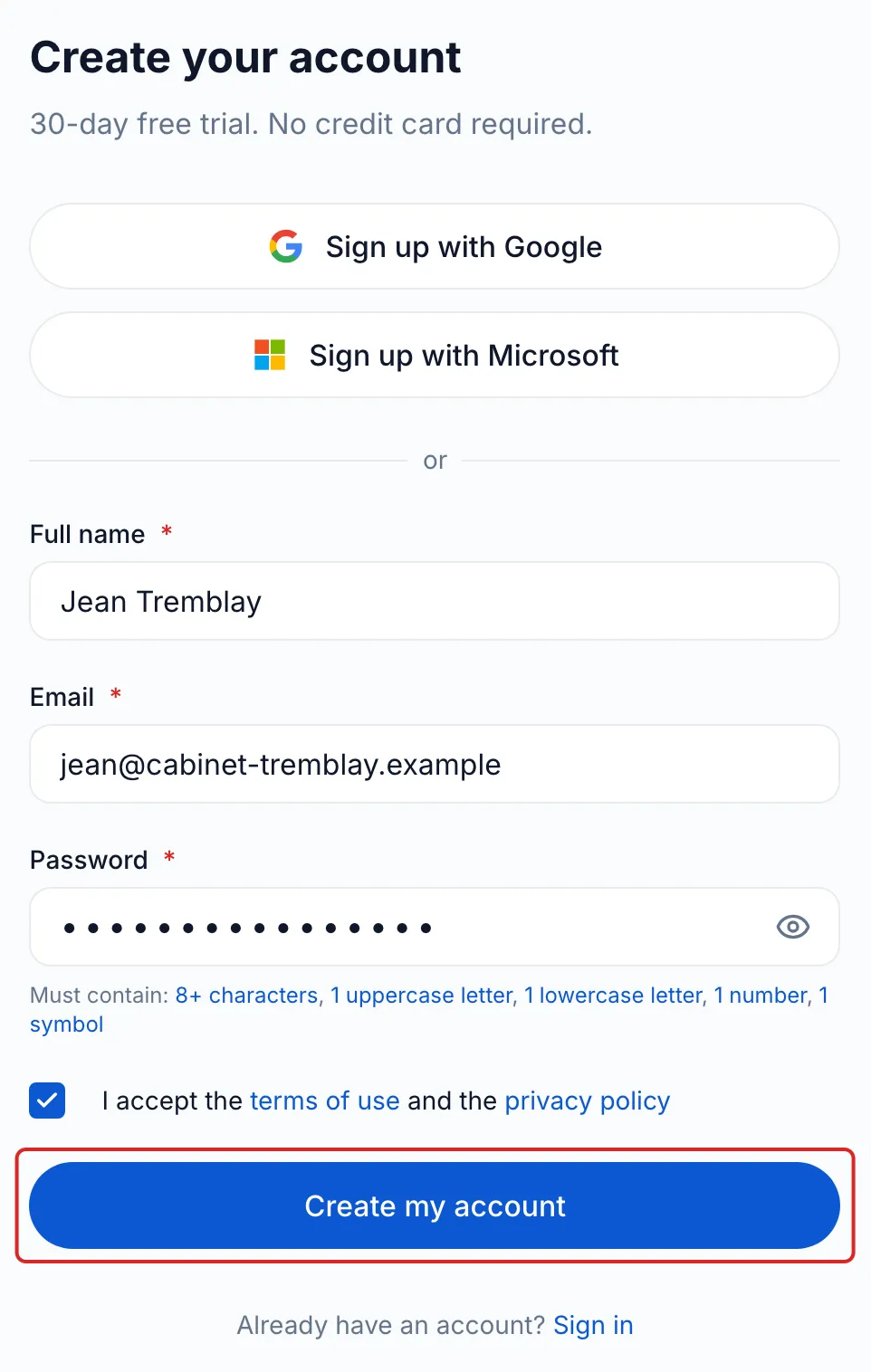
Click Sign up with Google or Sign up with Microsoft. Otherwise, fill in Full name, Email and Password. The password needs at least 8 characters, one uppercase letter, one lowercase letter, one number and one symbol.
-
Tick the box that accepts the terms of use and the privacy policy, then click Create my account.
-
If you signed up with your email, meo sends you a 6-digit code. Enter it in Verification code, then click Verify email. The code expires after 10 minutes. Send a new code sends another one. Check your spam folder if it does not arrive.
-
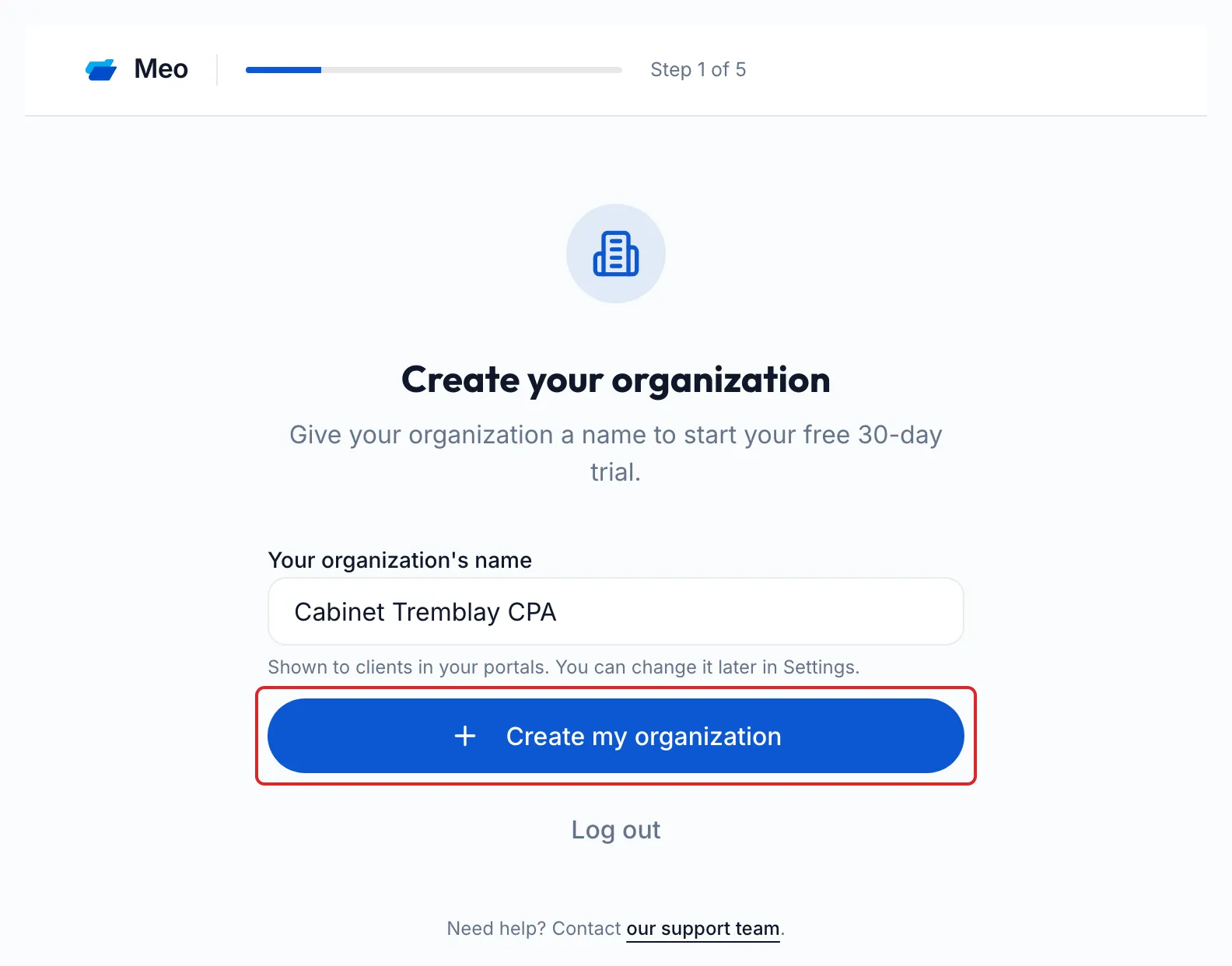
On the Create your organization screen, enter Your organization’s name, then click Create my organization. Your clients see this name in your portals. Your trial starts at this point.
-
At Where would you like to start?, choose Spend less time chasing my clients, Better protect my clients’ information or Do both. This choice sets what meo prepares first. Every tool stays available afterwards.
-
At What is your field of work?, choose your profession, or Other. meo prepares editable request templates suited to that choice.
-
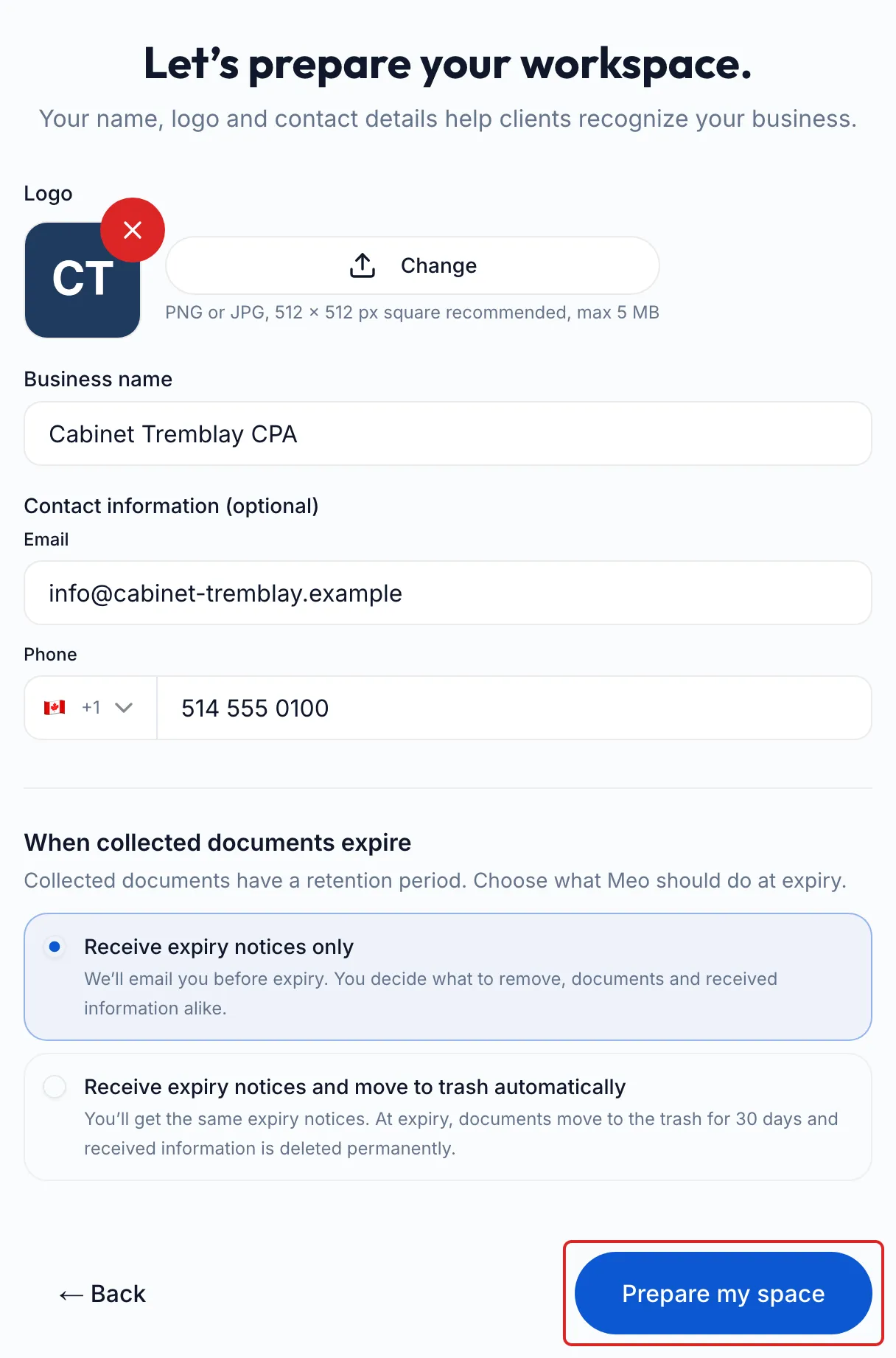
On the Let’s prepare your workspace. screen, add your Logo if you have one (PNG or JPG, 5 MB maximum), then the Business name your clients will see. The Contact information (optional) also helps your clients recognise you.
-
Under When collected documents expire, choose Receive expiry notices only or Receive expiry notices and move to trash automatically. Then click Prepare my space.
-
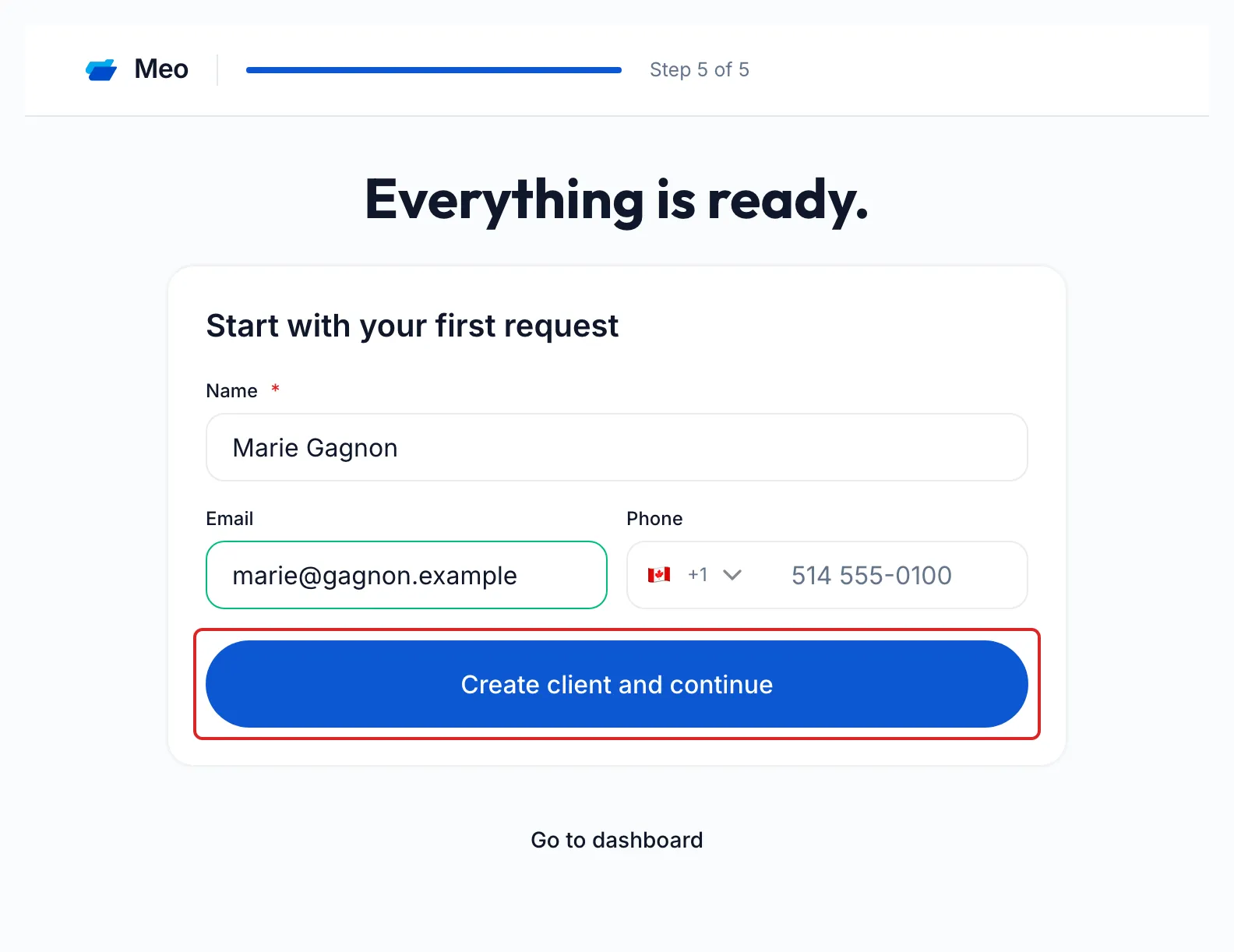
The last step follows your starting choice. For document collection, enter the Name of a first client with their email or phone number, then click Create client and continue: meo opens a new request for that client. For privacy, Continue setup takes you to the Privacy page. Go to dashboard takes you to the home page.
Result
Section titled “Result”Your organisation and your first space are ready, with request templates suited to your field.
Frequently asked questions
Section titled “Frequently asked questions”- Can you sign in to meo with your Google account?
- Can you change the settings made at sign-up later?
- Can several people share the same account?
- Can you get help setting up your account?