
Create a space
Create a space for a person, a team, a brand or an internal use. If you are unsure how many spaces you need, read How many spaces to create first.
Before you start
Section titled “Before you start”Only the owner and the organisation’s administrators can create a space. If you do not see the New space button, ask one of them to do it.
Create the space
Section titled “Create the space”-
Click Settings at the bottom of the left menu. In the organisation section, click Spaces.
Another way: open the space menu at the top left and click the + next to Space.
-
Click New space. The Create a new space window opens.

-
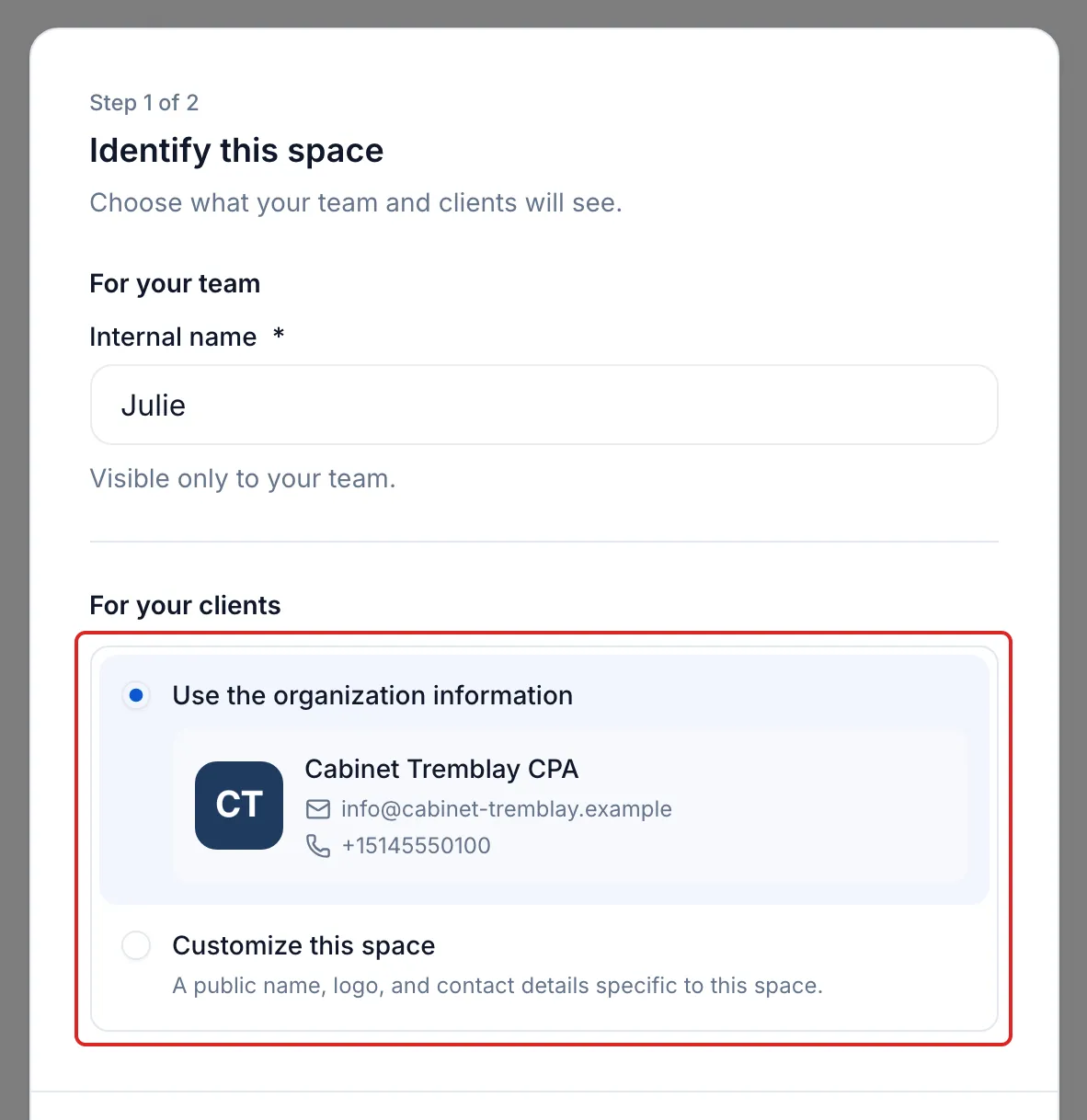
Under For your team, enter the Internal name, for example an advisor’s first name or a team name. Only your team sees it.
-
Under For your clients, choose an option:
- Use the organization information: the space takes the organisation’s name, logo, email and phone number. Your clients see the same firm in all your spaces.
- Customize this space: enter a Public name, click Upload a logo and, if needed, add an Email and a Phone number.
-
Click Continue.
-
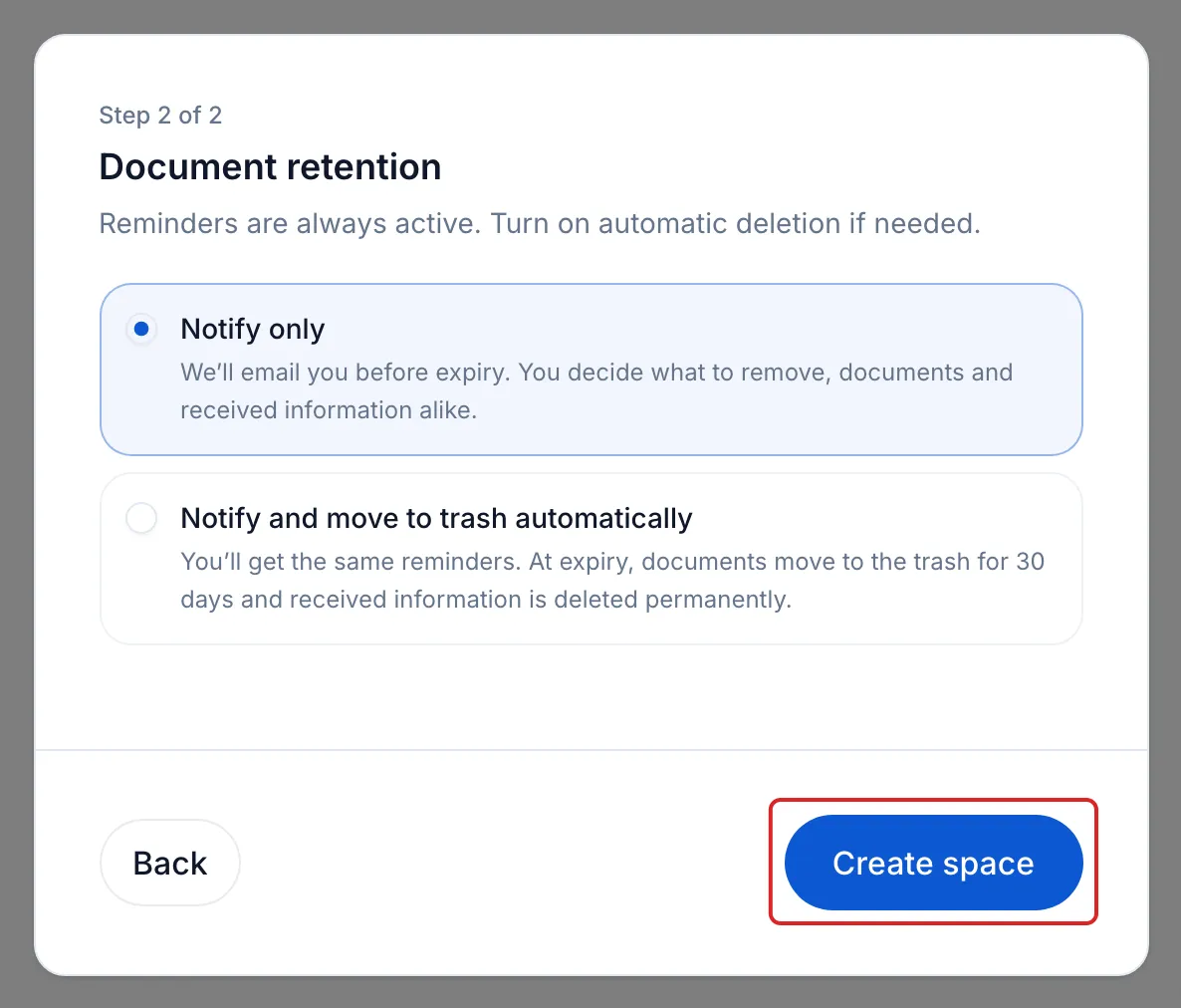
Under Document retention, choose Notify only or Notify and move to trash automatically. Expiry reminders stay active either way.
-
Click Create space.
Result
Section titled “Result”meo shows “Space created successfully” and takes you into the new space.
Good to know
Section titled “Good to know”- Users with organisation access get access to the new space automatically. Add the other people yourself.
- The organisation’s information is copied once. Changing it later does not change the space, and the reverse is also true.
- To edit the space later, select it, then open Settings. The Branding tab holds the public name, logo and contact details; the Retention tab holds automatic deletion.
- If your plan has reached its number of spaces, meo offers to add one before you continue.
Frequently asked questions
Section titled “Frequently asked questions”- Who can create a space?
- What is the difference between a space’s public name and its internal name?
- Can you use several brands or logos in your account?