
Share documents with a third party
A share gives someone outside your team access to a folder for a limited time: a client’s accountant, a broker, a notary. meo calls them a collaborator. They sign in with a code received by email or text message, without creating an account.
Before you start
Section titled “Before you start”- You share a folder, not a single file. Put the documents in a folder first, see Organise your documents with your own folders.
- meo does not share the folders it manages: Clients, a contact’s folder and the folder of an active request. Create a folder inside the contact’s folder and share that one.
- A folder’s menu offers Share on a computer only. If Share is greyed out, you do not have permission to share folders in this space.
Create the share
Section titled “Create the share”-
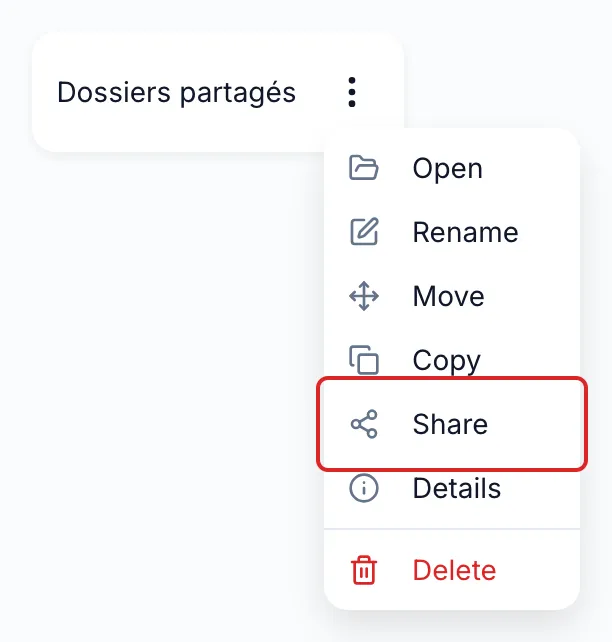
In Documents, open the folder’s ⋮ menu and click Share.
Another way: click Shares, under Documents in the left menu, then Create share. Open the folder and click Select this folder.
-
On the Contact step, look for the person under Select a contact. If they are not in your contacts yet, under or create a new contact, enter their name and their email or phone number, then click Create and select. Click Continue.
-
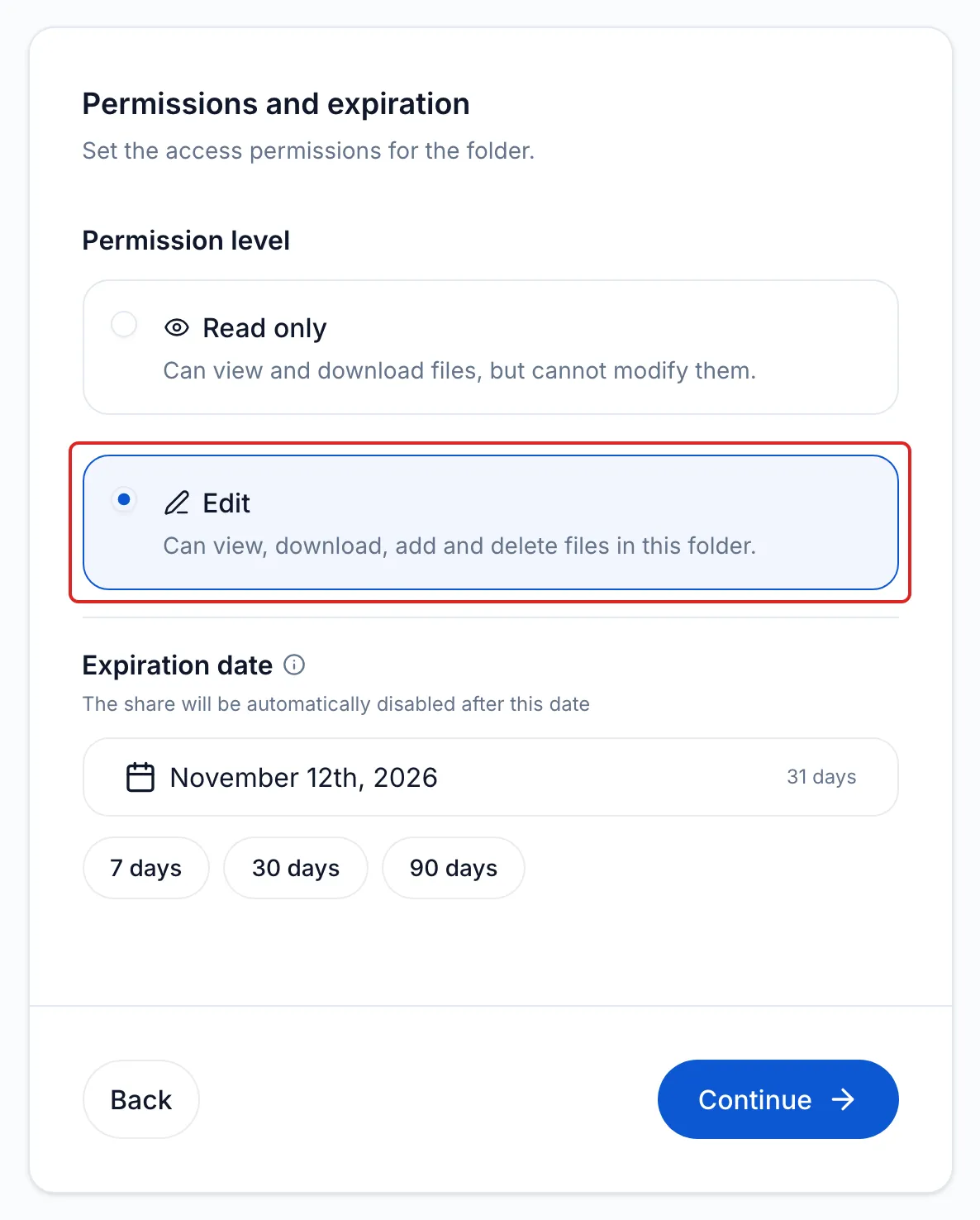
On the Permissions step, choose the Permission level: Read only to view and download files, Edit to also add and delete them. Choose the Expiration date: 30 days by default, 90 days at most. Click Continue.
-
On the Notifications step, leave Email or SMS on so that meo notifies the person, and check their language under Languages. Click Continue.
-
On the Confirmation step, check the folder, the permission and the expiration, then click Send.
Result
Section titled “Result”meo shows “Share sent”. The person receives an email with the Open folder button. Copy the link lets you pass it on another way.
What the collaborator sees
Section titled “What the collaborator sees”On the shared folder’s page, the person clicks Sign in, chooses By email or By SMS, enters the address or number that received the share, then the code they receive. The code expires in 10 minutes. With Edit, the New button lets them create a folder or upload files.
Manage your shares
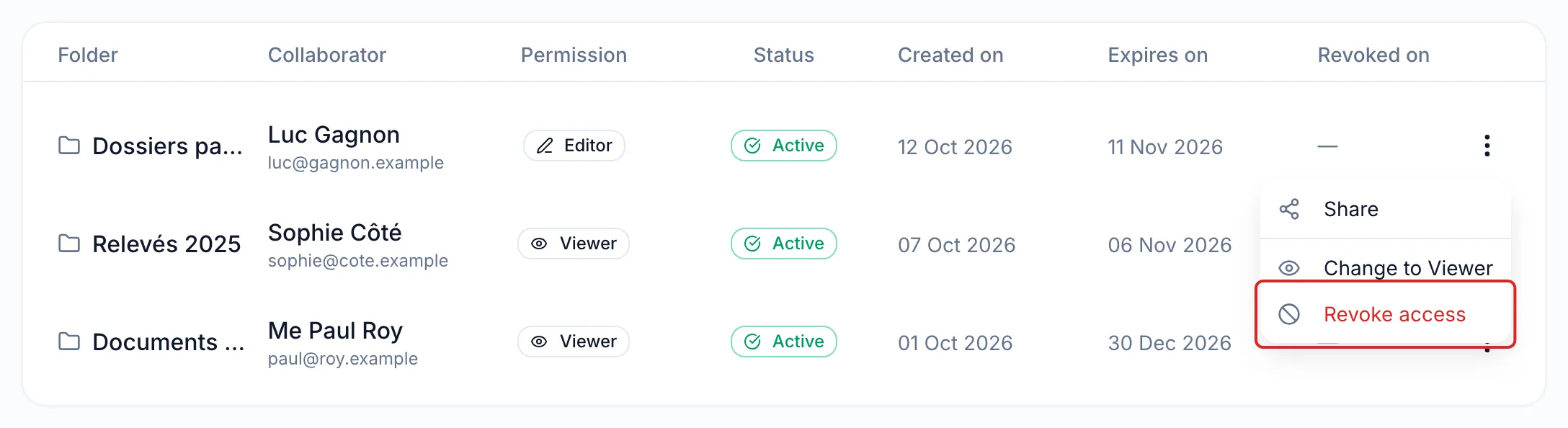
Section titled “Manage your shares”The Shares page lists each share with its folder, its collaborator, its permission, its status and its expiration date. The ⋮ menu of an active share offers Change to Viewer or Change to Editor, and Revoke access, which is immediate. On the expiration date, the share is turned off automatically.
Good to know
Section titled “Good to know”- With neither email nor SMS, the final button becomes Create: copy the link and pass it on yourself.
- A person created on the Contact step is added to your contacts. The Shares tab of their contact page shows their access and offers Revoke all access.
- On a folder that is already shared, the menu offers Add a collaborator and Manage shares.
Frequently asked questions
Section titled “Frequently asked questions”- What permissions can you give on a shared folder?
- Why can you not share the folder of a request in progress?
- What is the difference between a request and a shared folder?