
Add a vendor to the register
The Vendor register lists the third parties that handle personal information for your organisation: your accounting software, your email service, your payment tool. meo adds itself, with its assessment, when you activate the register.
Before you start
Section titled “Before you start”The register must be activated, see Set up the privacy tools. Only the organisation’s owners and administrators add and edit vendors; other users can view the register.
Add the vendor
Section titled “Add the vendor”-
In the left menu, click Privacy, then the Vendors card. Click Add.
-
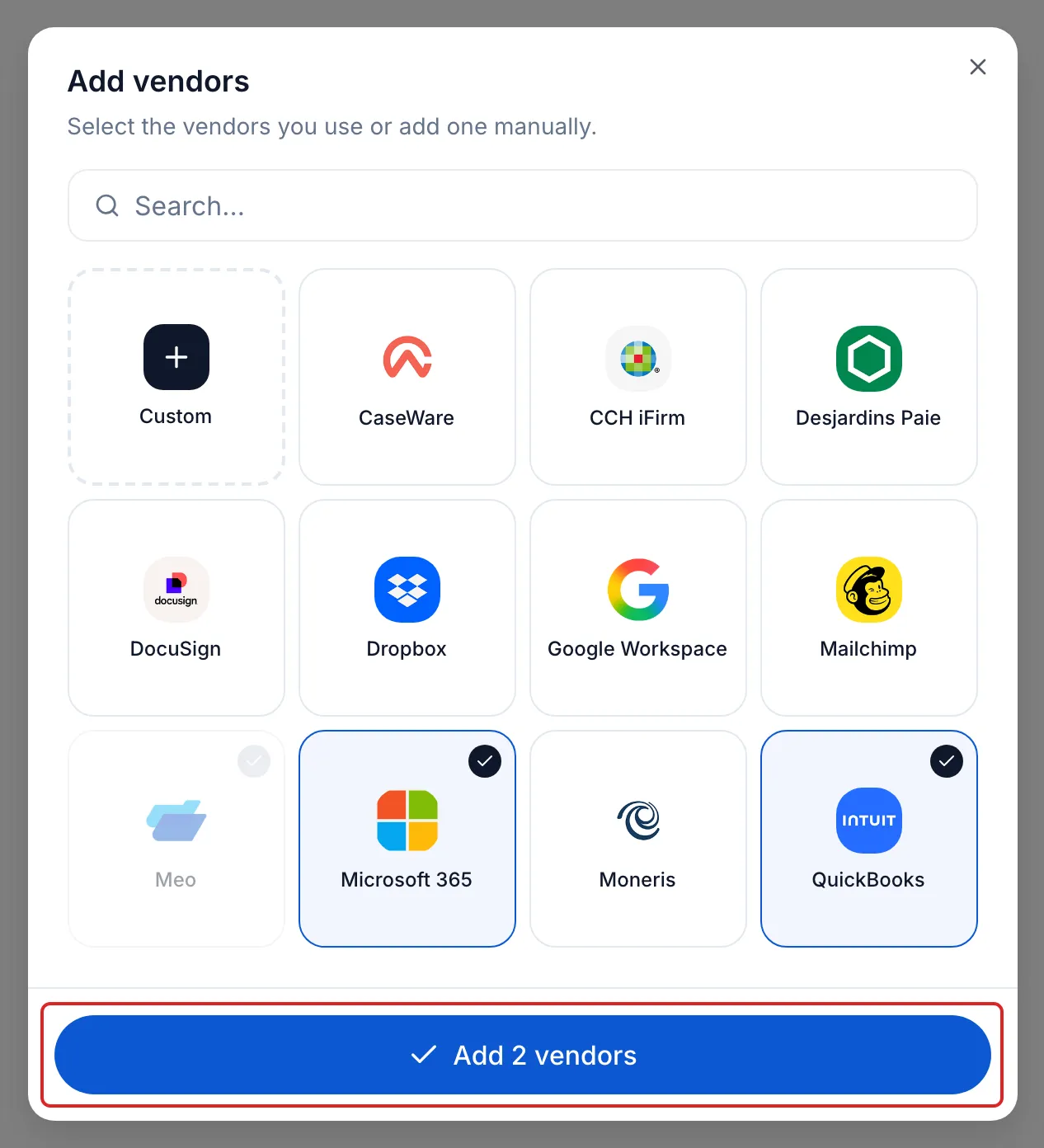
In Add vendors, search for your vendors and click each one, then click Add 2 vendors, for example. For a vendor missing from the list, click Custom, enter its Vendor website or its Vendor name, then click Add by website or Add by name.
-
Click the vendor in the register. Under What is this vendor used for?, choose its uses, then click Save. For a vendor that does not touch your clients’ information, choose Does not touch my clients: nothing else is asked.
-
Under Do you have a written agreement that includes these 5 clauses?, read the five clauses, then click Yes, my agreement covers these clauses or No, document the gap.
-
Under How is this vendor’s data handled?, choose Document the data location, Complete a privacy assessment (a PIA) or I don’t know, then answer the questions.
For a vendor chosen from meo’s list, the written agreement is ticked in advance. Check it: if your agreement does not cover the five clauses, click Edit at that step.
Result
Section titled “Result”The register shows each vendor’s State: Complete, Documented gap, or the number of steps done out of three. A PIA to complete also shows on Home, under Needs your attention. To remove a vendor, open it and click Delete this vendor: the deletion is immediate.
Frequently asked questions
Section titled “Frequently asked questions”- Which vendors should you list in the subcontractor register?
- Is any information processed outside Canada?
- Is meo enough to make your organisation compliant?