
Follow up after a request ends
A completed or closed request does not reopen. To ask the same people for something else, you create a follow-up: a new request linked to the original one, filed in the same file and shown on the same page.
Before you start
Section titled “Before you start”Follow up appears on a request that is completed, closed at its due date or cancelled. While the request is open, add items with Edit instead. Only one follow-up can be in progress at a time.
Ask for other documents
Section titled “Ask for other documents”-
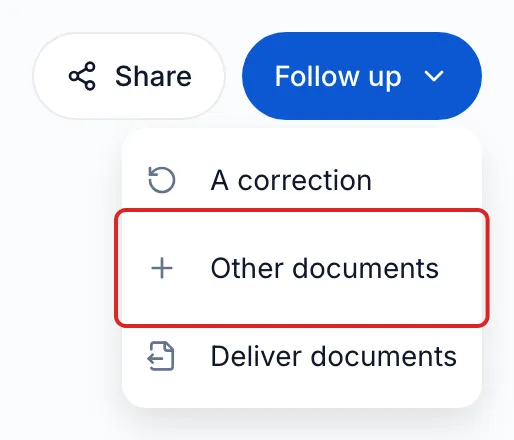
Click Requests in the left menu, then click the request. In the header, click Follow up. Depending on the request and your role, the menu offers A correction, Other documents and Deliver documents.
-
Click Other documents. The Request other documents window opens on the Composition step.
-
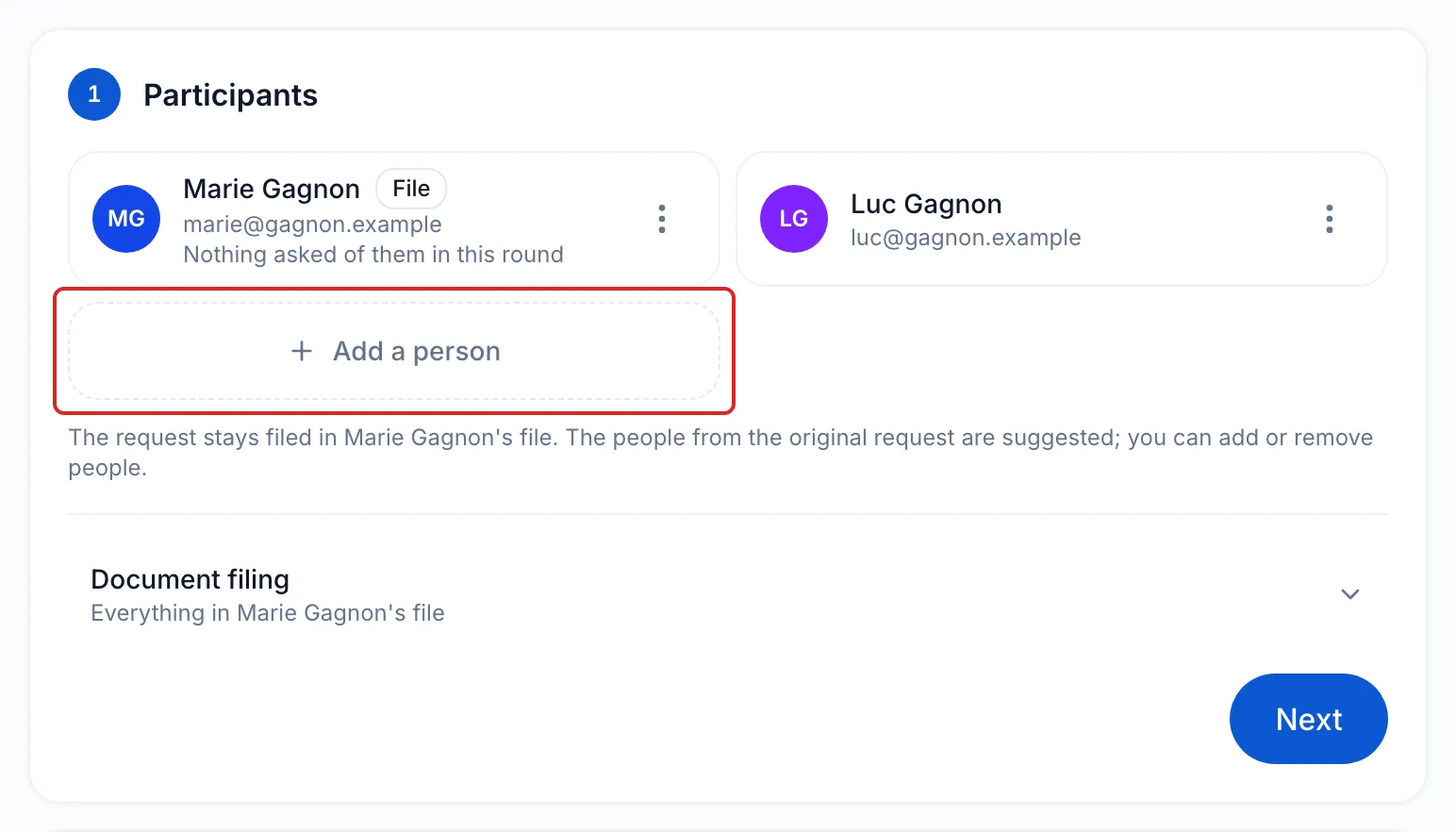
In the Participants card, the people from the original request are suggested. Remove those who have nothing to provide, or add people with Add a person. The follow-up stays filed in the same person’s file, and that person cannot be removed.
-
The title (“Follow-up - ” followed by the request’s name) and the instructions are carried over; change them if needed. In the Request contents card, click Add an item and add what you are asking for, as for a new request. Click Continue.
-
On the Delivery step, the purpose, the channels and the reminders are those of the original request; the Due date is one week later. Change them if needed, then click Continue.
-
On the Confirmation step, check what each person receives, then click Send.
What your client sees
Section titled “What your client sees”Each person receives an email with a new link, specific to the follow-up. If they were already notified of the original request, the email asks them for “more items”. Their portal only shows what the follow-up asks of them.
Correct or deliver documents
Section titled “Correct or deliver documents”- A correction opens the correction pane: choose the items to correct on their line. Sending creates the follow-up. See Ask for a correction.
- Deliver documents creates a follow-up made only of handouts. See Deliver documents to your client.
Result
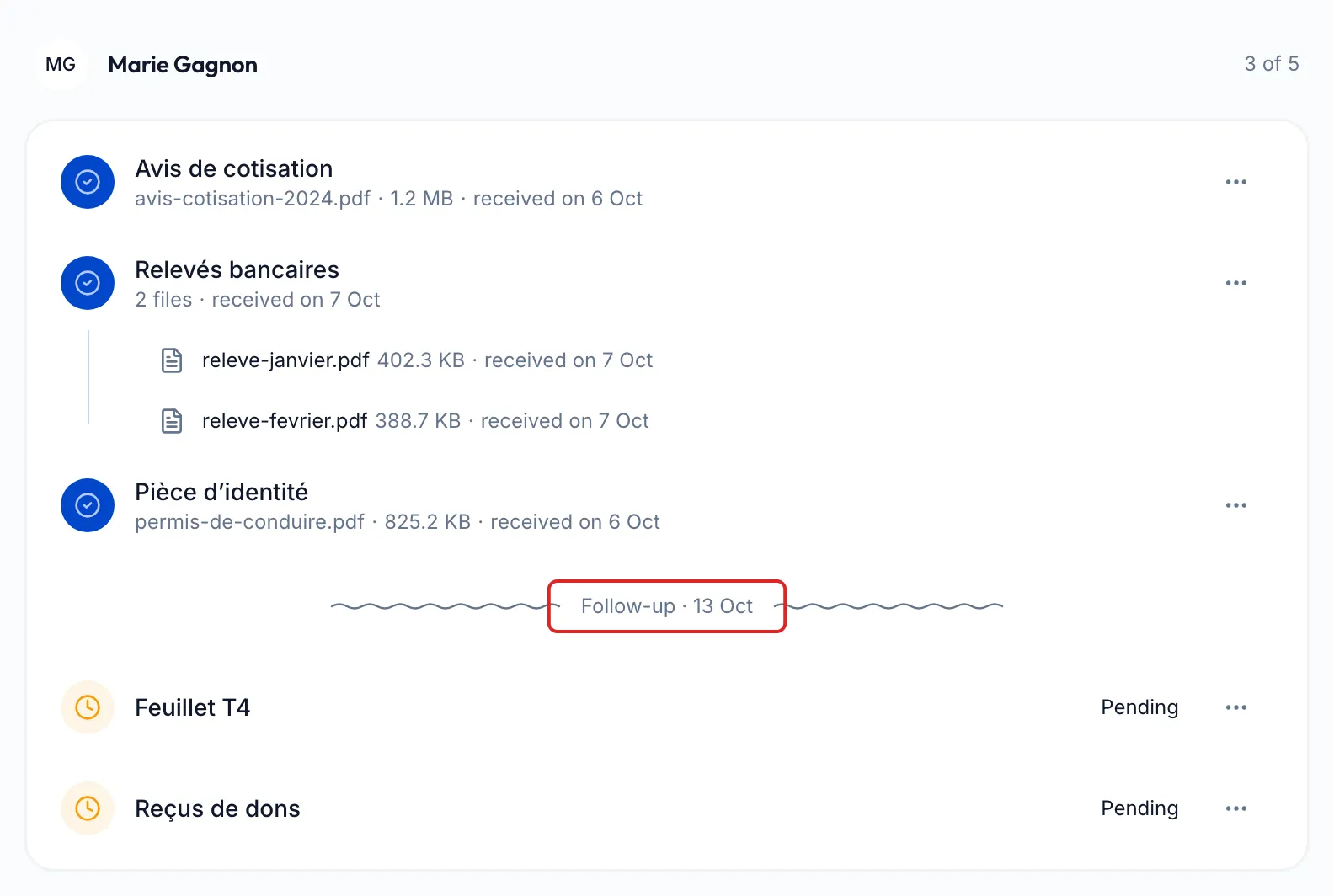
Section titled “Result”The follow-up appears on the original request’s page, in the card of each person concerned, under “Follow-up ·” and its date.
Good to know
Section titled “Good to know”- While the follow-up is in progress, the request’s header manages it: Share, Remind and Edit apply to it. Follow up comes back once it is closed.
- The follow-up does not appear on its own in the requests list. Its history is added to the original request’s history.
- Other documents and Deliver documents require permission to create requests in the space.
Frequently asked questions
Section titled “Frequently asked questions”- Can you add items to a request that has already been sent?
- Can you leave a request’s portal open for future uploads?
- In which person’s file are a request’s documents filed?