
View a request's history
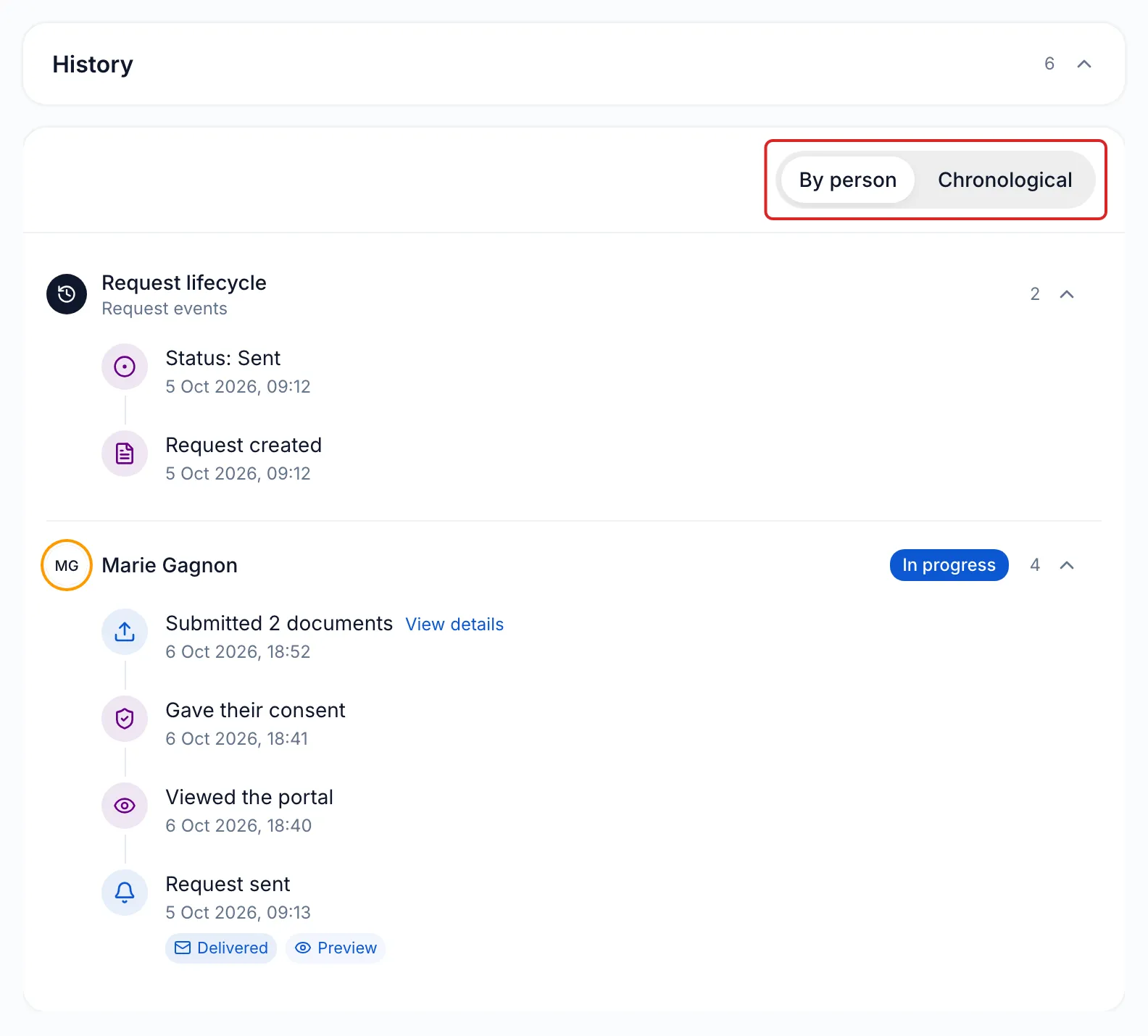
A request’s history shows everything that happened since it was created: the emails and text messages sent, portal visits, consent, uploads, signatures and your team’s actions.
Open the history
Section titled “Open the history”-
Click Requests in the left menu, then click the request.
-
Below the people’s cards, click History. The number on the right shows how many events the request has.
-
Choose a view:
- By person: one section per person, preceded by Request lifecycle for the events of the request itself. Click a person’s name to show or hide their events.
- Chronological: every event, newest first, each one preceded by the person’s name.
-
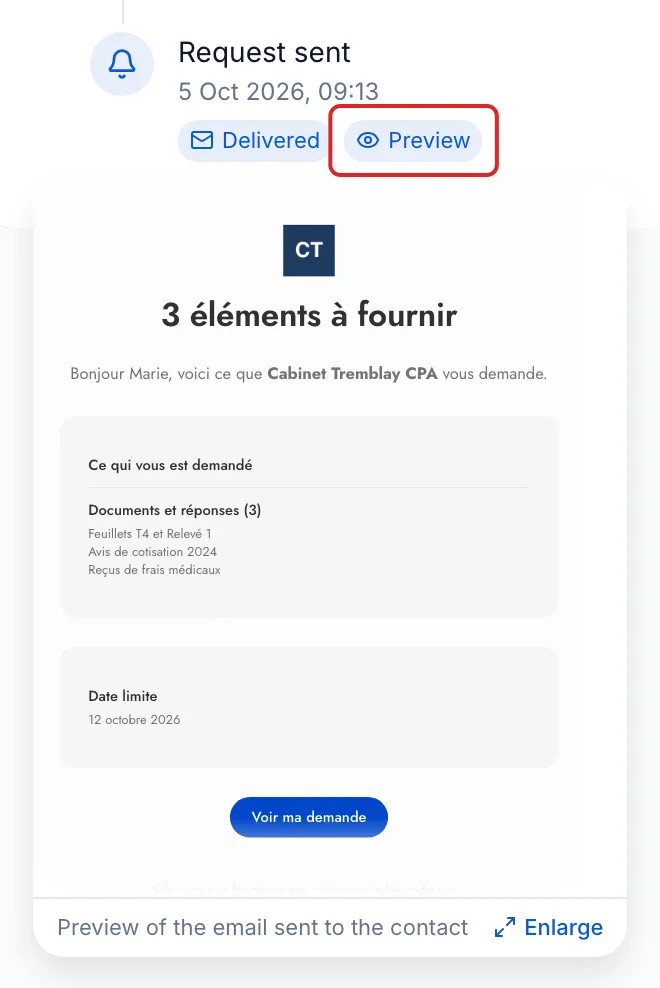
To see the email a person received, hover over Preview under the sending. Click Preview to show it full size.
-
Under a “Submitted” line, click View details for the list of items submitted.
What the history contains
Section titled “What the history contains”| Type | Examples |
|---|---|
| Sendings | “Request sent”, “Reminder sent”, “Signature invitation”, “Request modified”, “Correction requested”, with the channel and the status Delivered, Failed or In progress |
| The person’s actions | “Viewed the portal”, “Gave their consent”, “Submitted 2 documents”, “Confirmed “Accepted” for…”, “Signed…”, “Downloaded…” |
| Your team’s actions | “Filed by… for…”, ”… marked as not required by…”, ”… removed by…”, “Request completed by…” |
| Request lifecycle | “Request created”, “Status: Sent”, “Request completed”, “Request cancelled”, “Collection closed at the due date” |
Result
Section titled “Result”You see who received what, through which channel, and what each person did, with the date and time of each event.
Good to know
Section titled “Good to know”- A request’s follow-ups, such as a correction or other documents requested, are added to the same history. Their name appears before the date.
- Click “Gave their consent” to open the contact’s Privacy tab. It shows the consent message accepted, the date, the time and, under Technical details (audit evidence), the device and the IP address.
- For the proof of a statement, open the item in the request: the Proof and activity section gives the date, the version of the text and its SHA-256 fingerprint.
Frequently asked questions
Section titled “Frequently asked questions”- Can you get confirmation that your client has read the documents you delivered?
- Can you send a request link yourself, without meo’s emails?